Pushing WordPress staging to production is the most consequential step in the staging workflow. Everything up to this point has been risk-free. Staging is a sandbox. Nothing you do there affects your live site.
The moment you push staging to live, that changes. If the push is handled incorrectly, you can overwrite live data, break functionality, or introduce issues that weren't present on staging. Done correctly, the push is smooth, and your visitors never know anything changed.
This guide covers how to push staging to live WordPress correctly: what to push, what to leave alone, how to verify, and how to roll back if something goes wrong. If you're new to the concept, our explainer on what a staging site is provides the foundation. This is the process we follow to deploy WordPress staging across all the sites we manage.
The Fundamental Decision: What Gets Pushed
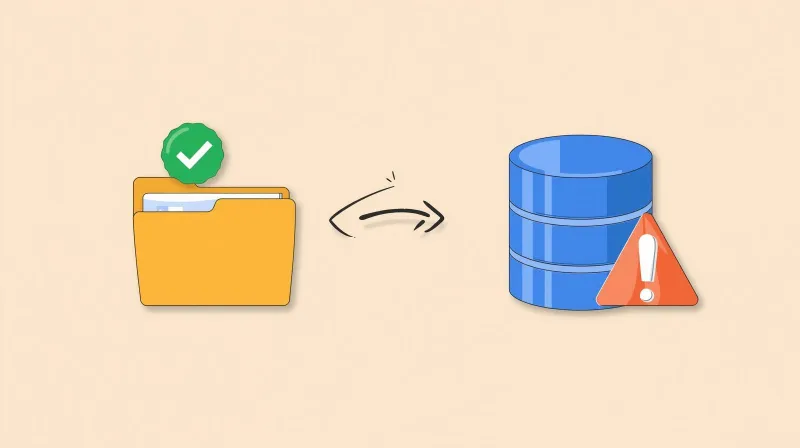
Before pushing anything, you need to decide exactly what moves from staging to production. This decision is more important than the mechanics of the push itself.
WordPress stores changes in two places: files (theme, plugins, core code) and the database (content, settings, users, transactions, everything else). For a full explanation of how this split affects staging, see our WordPress staging environments guide. For deployment purposes, here's what matters.
Files are safe to push. Plugin updates, theme changes, custom code, and all file changes can be moved from staging to production without risking your live data.
The database is where deployment becomes dangerous. There is no magic merge. That's the biggest confusion about staging sites. They don't merge. They overwrite.
When you push the staging database to production, you're replacing the production database with the staging copy, not combining them. If your production site has been active since the staging copy was created, a full database push overwrites all of that activity: new content, form submissions, member registrations, and donation transactions.
This is the single most important thing to understand about pushing WordPress staging to live. Most tutorials mention it in passing. We're putting it front and center because we've seen what happens when it goes wrong.
WordPress Staging to Live: Push Strategies
Strategy 1: Files Only (The Default)
When to use: Plugin updates, theme changes, custom code deployments, any change that doesn't require database modifications.
Risk level: Low
This is the safest approach and should be the default for most WordPress staging to production deployments. Push only file changes from staging to live. The production database stays exactly as it is. No content is overwritten. No user data is lost. No transactions are affected.
In practice, the vast majority of our deployments are files-only. When we explain the database limitations to nonprofit and association clients, very few actually want database-level staging changes.
Plugin updates change the plugin's code files. Theme updates change the theme's template and style files. The database doesn't need to change for these to take effect. This is the deployment strategy that works for routine maintenance, which is 90% of staging use.
How it works:
- Deploy only changed files from staging to production (via hosting dashboard, plugin, or SFTP)
- Clear all caches on production (server cache, CDN, object cache)
- Visit the site to verify changes are live
- Monitor for any issues
Strategy 2: Selective Table Push
When to use: Configuration changes that affect specific database tables, new plugin settings that need to carry over, and custom database tables created during staging work.
Risk level: Medium
Sometimes a staging project involves changes that are partially stored in the database. For example, if you configured a new plugin on staging, its settings likely live in the wp_options table. Pushing just that table brings the configuration forward without touching content, users, or transactions.
Tables that are generally safe to push selectively:
wp_options(plugin settings, theme options, site configuration, but be careful with transients and session data)- Custom tables created by plugins during staging work
Tables you should rarely push without extreme caution:
wp_postsandwp_postmeta(contains all your content, WooCommerce orders, form entries)wp_usersandwp_usermeta(user accounts and profiles)wp_commentsandwp_commentmeta(user comments)- WooCommerce-specific tables (orders, products, customers)
How it works:
- Identify exactly which database tables were modified during staging work
- Push only those specific tables using your hosting dashboard or staging plugin
- Push file changes as well
- Clear caches and verify
Strategy 3: Database Merge
When to use: WooCommerce sites, membership sites, or any site where the production database is actively changing during staging work, and database-level changes from staging need to go live.
Risk level: Medium (depends on tool quality)
Database merging is the most sophisticated approach. Instead of overwriting the production database, merge tools identify the specific changes made on staging and apply only those changes to production, leaving everything else intact.
Tools like WP Stagecoach and WPMerge offer this capability. WP Stagecoach's merge feature is purpose-built for this scenario and handles it well. WPMerge records changes on staging and replays them on production. For a detailed comparison of tools that handle database merging, see our WordPress staging plugins guide.
This approach is particularly valuable for sites like Club for Growth's multi-entity donation platform, where donation processing through four separate Stripe gateways runs continuously. A full database push on a site processing real-time donations would be catastrophic. Selective merging allows configuration changes to go live without affecting transaction data.
Similarly, deploying changes to ABFPRS's five interconnected sites requires understanding how a push to one site affects the cross-site REST APIs that connect all five properties. A deployment that breaks the authentication API on one site can cascade across the entire ecosystem.
Strategy 4: Full Database Push with Maintenance Window
When to use: Complete site redesigns, initial site launches, or major restructuring where the entire database needs to change, and production can be temporarily frozen.
Risk level: High (requires careful planning)
A full database push replaces the entire production database with the staging copy. This is the nuclear option. It's necessary in certain situations, but it requires a maintenance window during which no changes are made to production.
The process:
- Announce the maintenance window to all stakeholders
- Enable maintenance mode on production (prevents any new activity)
- Take a final backup of the production database (this is your rollback point)
- Push the full staging site (files and database) to production
- Run search-replace to update any URL references
- Verify everything works
- Disable maintenance mode
- Monitor closely for issues
For organizations with continuous activity, like associations processing member data or nonprofits accepting donations, the maintenance window needs to be short and scheduled during the lowest-traffic period.
How to Deploy WordPress Staging to Production
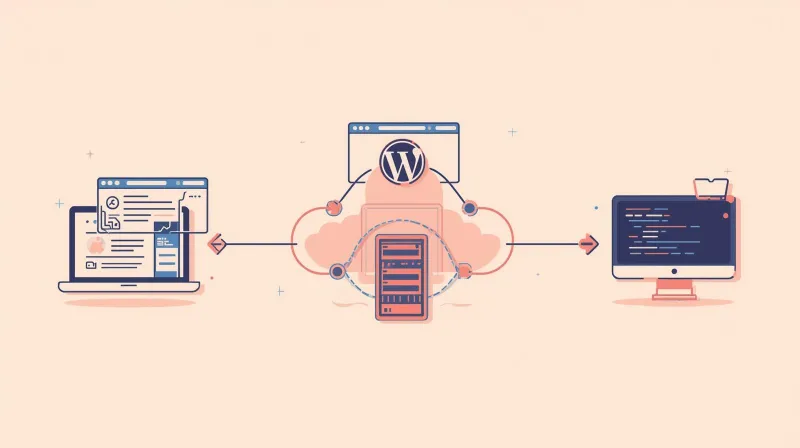
How files get from staging to production depends on your tools and environment. Here's what we use and what we've seen work (and fail) across the sites we manage.
Hosting Dashboard Push (What We Use)
Most managed hosting providers (Cloudways, WP Engine, Kinsta, SiteGround) offer a push mechanism in their dashboards. This is our default deployment method. Click the push button, select what to deploy, and the hosting platform handles the file transfer and URL rewriting.
Watch for: Some hosts perform a full file overwrite, meaning files in production that don't exist in staging are deleted. Others use an incremental push, copying only changed files.
On Cloudways, we typically use incremental pushes, which copy only changed files and leave production files that don't exist in staging untouched. Know which method your host uses before pushing.
Plugin-Based Push
Staging plugins like WP Staging Pro and BlogVault have their own push mechanisms. These work similarly to hosting dashboard pushes but operate at the WordPress level rather than the server level. The trade-off is that a WordPress-level push depends on WordPress itself functioning correctly, while a server-level push operates independently of the application.
Git-Based Deployment
For development teams using version control, deploying via Git is the cleanest way to handle code changes. Changes committed to a repository get deployed to production through Git hooks or CI/CD pipelines. This doesn't handle database changes or media files, so it's typically combined with other methods.
Manual SFTP
The manual approach: connect to both staging and production via SFTP, identify changed files, and copy them over. Error-prone and tedious. We've seen missed files cause partial deployments and forgotten uploads create inconsistencies that are hard to diagnose later. This is the emergency fallback, not a workflow.
Post-Deployment Verification: The Step Everyone Skips
Pushing changes to production is not the end of the process. It's the beginning of the verification process. What worked on staging may behave differently on production due to caching, CDN configuration, different server settings, or data differences. Following staging environment best practices means treating post-deployment verification as non-negotiable.
Immediate Verification (First 15 Minutes)
Clear all caches. Every layer: server-level cache (Varnish, LiteSpeed, Breeze), CDN cache (Cloudflare, StackPath), object cache (Redis, Memcached). Tell your team to clear their browser caches.
Check critical pages:
- Homepage
- Key landing and service pages
- Blog listing and individual posts
- Contact page and forms
- Login/registration pages
- Checkout or donation pages (if applicable)
Test critical functionality:
- Submit a test form and verify the notification arrives
- Test login flows
- If you have e-commerce, run a test transaction (or verify the checkout flow loads correctly)
- Check that the search returns results
- Verify that navigation and menus work on both desktop and mobile
Review technical indicators:
- Check for console errors in browser developer tools
- Verify no mixed content warnings (HTTP resources loaded on HTTPS pages)
- Confirm the SSL certificate is valid
- Check that the site loads over both www and non-www versions
Ongoing Monitoring (First 24-48 Hours)
Watch PHP error logs. New warnings or errors after deployment indicate something that staging didn't catch, possibly due to differences in server configuration, PHP version, or caching behavior.
Monitor performance. If page load times increase noticeably after deployment, investigate whether new plugins, updated code, or changed caching configurations are the cause.
Check email delivery. If the deployment involved changes to contact forms, notification systems, or transactional email, verify that emails are being sent and received correctly.
Verify SEO elements:
- Meta titles and descriptions are correct
- Structured data still validates
- Sitemap generates properly
- No accidental noindex tags from staging
Check that search engine indexing is enabled. One of the most common post-deployment mistakes: the staging site's "Discourage search engines from indexing this site" setting gets pushed to production. Your site disappears from Google. This is avoidable with a 30-second check after every deployment.
Verify redirects and URL integrity. For major deployments, especially rebrands or restructures, post-deployment redirect verification is critical.
When we executed the Greenlight Health acquisition rebrand, 85 active 301 redirects needed to function correctly post-deployment to preserve SEO equity from the previous brand's indexed pages and press coverage. Every redirect was verified individually after the push.
Check association-specific integrations. For sites with CRM connections, payment gateways, and member authentication, post-deployment means verifying that:
- Stripe is back in live mode (not test mode from staging)
- CRM API connections are authorized for the production IP
- Email deliverability configurations are intact
These integration checks are specific to the site's architecture and need to be part of a documented deployment checklist.
Rollback: The Plan You Need Before You Push
Every deployment should have a defined rollback plan before the push button is clicked. Not after something breaks. Before.
Pre-Push Rollback Preparation
- Take a full backup of production immediately before the push. This is your rollback point. Not yesterday's backup. Not last week's scheduled backup. A fresh backup taken right now, before anything changes.
- Document the backup location and verify you can access it.
- Define rollback criteria. What constitutes a failure serious enough to roll back? Examples: checkout is broken, homepage doesn't load, forms aren't submitting, login is broken.
- Make sure someone with server access is available during and after the push. If something goes wrong at 5 PM on Friday, someone needs to be able to restore the backup.
When to Roll Back
Roll back when:
- Critical site functionality is broken (checkout, login, forms, member access)
- The homepage or key pages don't load
- PHP fatal errors are occurring
- The issue can't be identified and fixed quickly (within your defined rollback window)
Don't roll back when:
- Minor visual issues that can be patched (a font that looks slightly different, spacing that's off by a few pixels)
- Non-critical pages have issues that don't affect the majority of visitors
- The issue is clearly cache-related and resolves after clearing the caches
How to Roll Back
- Restore from the pre-push backup using your hosting dashboard or backup tool
- Verify that the restore completed successfully by checking the site
- Clear all caches
- Notify stakeholders that the deployment was rolled back
- Investigate what went wrong on staging, meaning why the issue wasn't caught before production
- Fix the issue, re-test on staging, and plan a new deployment
The entire rollback process should be practiced before you need it in an emergency. Knowing theoretically how to restore a backup is different from doing it under pressure when your site is down, and stakeholders are asking questions.
Common Deployment Mistakes
Pushing the Database Without Understanding the Consequences
The most damaging mistake. A full database push after days or weeks of staging work overwrites everything that happened on production during that period: new content, form submissions, user registrations, transaction records.
We've seen clients lose weeks of data because no one explained the database overwrite before the push.
Prevention: Default to files-only pushes. Only push database changes deliberately and selectively.
Forgetting to Clear Caches
You push changes to production, check the site, and nothing looks different. Panic sets in. Did the push fail? Usually, no. The old cached version is still being served. Clear the server, CDN, and browser caches before concluding the push didn't work.
Prevention: Cache clearing is the first step in post-deployment verification. Every time, without exception.
Carrying Staging Settings to Production
Staging sites should block search engines, have debug mode enabled, test payment gateways, and use different email configurations. If those settings carry over to production, your site disappears from Google, real transactions fail, and email notifications go to the wrong places.
Prevention: Post-deployment verification includes checking indexing settings, payment gateway modes, and email configuration.
Pushing During Peak Hours
Deploying changes during your site's busiest period maximizes the number of visitors affected if something goes wrong. Deployments should happen during low-traffic windows when the impact of any issues is minimized.
Prevention: Schedule deployments during known low-traffic periods. For most organizations, early morning or late evening works. For global organizations, there may be no true quiet period, so deployments should be fast, and rollback plans should be tight.
No Rollback Plan
Pushing without a rollback plan means that if something goes wrong, you're improvising under pressure. Restoring from backup sounds simple until you're doing it for the first time, with stakeholders asking when the site will be back up.
Prevention: Take a backup before every push. Document the restore process. Practice it before you need it.
The Professional Standard for WordPress Staging to Live
For every site we manage, the WordPress staging to production workflow follows the same process:
- Fresh staging copy created from production
- Changes made and tested on staging using documented checklists
- Pre-deployment backup taken of production
- Files pushed to production (database changes applied manually and selectively when needed)
- All caches cleared across every layer
- Post-deployment verification completed
- Error logs monitored for 24-48 hours
- Staging environment destroyed
That last step matters more than most guides acknowledge. A staging site should last a few days to a few weeks for a large development project. We put it up, do what we need, then destroy it.
When we need to do something else, we create a brand new copy from production. Staging is ephemeral by design, and leaving staging sites running after deployment is how they drift from production and create the problems they were meant to prevent.
This process runs for every deployment: plugin updates, custom development, theme changes, and PHP upgrades. The consistency is what makes it reliable. No shortcuts, no "it's just a small change so we'll skip staging," no exceptions.
For more on the workflow that makes this possible, read our staging environment best practices guide. For the full context on how staging works and why the database problem matters, see our full WordPress staging guide.
Need Deployments Handled by Professionals?
If pushing staging to production sounds like more risk than your team wants to manage, that's a perfectly reasonable position. Contact our team to learn how every deployment follows this exact process, with built-in rollback plans and post-deployment verification for every change.