Every WordPress site we manage has a staging environment. It's not optional. A WordPress staging site isn't something we set up when a big project comes along. It's fundamental to how we work, and it should be fundamental to how anyone managing a professional website works.
But here's the problem with most WordPress staging content online: it focuses on how to click the "Create Staging" button in your hosting panel. That's the easy part. What nobody explains well is how to actually use a staging site as part of a workflow, why the database merge problem makes WordPress staging far more complicated than the tutorials suggest, and when staging is the wrong tool for the job.
If your developer is using your production site to stage development work, they're doing it wrong. And if your developer can't set up a staging site, they may not have the experience you need for professional site management.
Let's talk about what staging actually is, what it isn't, and how professionals use it every day.
What a WordPress Staging Site Actually Is
A WordPress staging site is a copy of your live website that exists in a separate, private environment. You make changes on the staging copy, verify everything works, and then push those changes to your production (live) site. The production site stays untouched until you're confident the changes are safe.
That's the textbook definition. The reality is more nuanced.
WordPress has two parts: files and a database. Files include your theme code, plugin files, and core WordPress files. The database stores your content, settings, user accounts, form submissions, WooCommerce orders, and everything else that makes your website yours.
Staging works great for file changes. You can stage theme modifications, plugin updates, and code changes all day long without risk.
The database is where everything gets complicated.
The WordPress Staging Database Problem Nobody Explains Well

This is the single most misunderstood aspect of WordPress staging sites, and it's the reason most tutorials are dangerously incomplete.
WordPress databases don't merge. They overwrite. That's the fundamental problem.
When you "push staging to live," you're either replacing the live database with the staging database or pushing only file changes while leaving the live database alone. There is no middle ground where WordPress staging intelligently combines changes from both environments. There is no magic merge.
What this means in practice: if you create a staging site on Monday, spend a week making changes, and then push the staging database to production on Friday, you've just overwritten everything that happened on the live site during that week. New blog posts, form submissions, user registrations, WooCommerce orders, and member data updates. All of it, potentially gone.
For a personal blog with one author, that's manageable. You just stop publishing for a week. For an association with multiple administrators and editors logging in throughout the day, making content updates, processing member data, and handling donor records? A staging site becomes out of date the moment someone makes a change to production that isn't also made to staging.
The only way to use staging for database-level content changes is to freeze production. No changes allowed until staging is reviewed and pushed. For most of our clients, that's not realistic because they have dynamic data flowing in constantly from members and donors.
We've never had a database overwrite on our watch because, for our hosted clients, we manage staging and educate them on how it works. But we've seen it happen before, even when clients come to us.
A common scenario: a client spends days or weeks doing content reorganization and plugin configuration on staging, then asks us to push changes to production. We look at the production environment and discover it's been actively maintained the whole time, with its own changes. There is no way to merge those two realities. Work has to be repeated, and it's always disappointing when that realization lands.
How We Actually Use Staging
Understanding the database limitation shapes our entire WordPress staging workflow. We don't use a staging site the way most tutorials describe. We use it as a strategic tool for three specific purposes.
1. Automated Weekly Updates
This is our primary staging use case, and it runs entirely without human intervention.
We use SafeUpdates, an automated system provided through Cloudways, our hosting partner. Once a week on a set schedule, it spins up a staging site from production. It runs all pending plugin, theme, and core updates, then tests the site. Multiple layers of testing run: log file review, regression testing on key pages. If everything passes, those same updates run on production, and the staging site is destroyed.
A human never sees the staging site unless something goes wrong. That's how automated staging should work.
When something fails, the updates are not applied to production. They only ran on staging, so no harm done. We get an automated email, investigate manually, and step through updates to identify the issue. Often, it's something non-catastrophic like a premium plugin missing a license key.
This is fundamentally different from WordPress auto-updates. Turning on auto-updates and hoping for the best is a recipe for disaster. It'll go smoothly for a year, two years, maybe three. Then one day, your site is broken: white screen of death, forms not sending emails, layout issues, and you're in detective mode, figuring out what happened.
WordPress 6.9 broke three major plugins at launch, including WooCommerce, Yoast SEO, and Elementor, affecting millions of sites that had auto-updates enabled. Our clients? Unaffected, because SafeUpdates caught the conflicts on staging before they ever reached production.
Ten or twenty years ago, spinning up a staging environment took real effort. Today, it's completely automated and worth every penny. The technology exists to test updates safely before they hit production. Use it.
2. PHP Version Upgrades
When PHP releases a new version, we stage the site on a new server running the newer version, run all tests, and then redirect traffic to the new instance. The staging site essentially becomes the new production environment. This avoids the risk of upgrading PHP on a running production server and discovering incompatibilities afterward.
PHP upgrades are where staging is non-negotiable. Older plugins, custom code, and theme functions may not be compatible with newer PHP versions, and the only way to know is to test in a controlled environment. Upgrading PHP in place on a production server and hoping everything works is exactly the kind of gamble that staging exists to prevent.
3. Custom Development Work
For new features, design changes, or major site modifications, we set up a staging site for client review. We explain the database scenario up front: the staging copy will drift from production, and that's expected because we're focused on developing a specific feature rather than maintaining content parity.
When the development is approved, we push file changes forward to production and leave the production database alone. Any database changes required by the new feature (new tables, new options) get applied manually and carefully to production.
The Staging Mistakes We See Constantly

The Content Cleanup Disaster
Someone does a content cleanup on production, deletes a bunch of pages, empties the trash, then realizes they removed something critical. A staging site would have caught this before anything was permanent. Testing destructive changes on staging first is the most basic use case, and it's the one most people skip.
The Plugin Uninstall Data Loss
Someone uninstalls a plugin, thinking they'll try a different one. A well-designed plugin deletes all its data on uninstall. That's actually good practice from a development standpoint, but it's devastating when the user expected the data to survive. No auto-magic transfers data between plugins. On a staging site, you'd discover this before losing real data.
The Year of Neglect
Someone who hasn't updated their site in a year hits "update all." A site that's been without updates that long is exactly where staging should be used first. In development terms, that's a sandbox: a protected playground where you can discover what breaks before your visitors do.
The Budget Hosting Trap
The worst scenarios we see come from budget hosts like GoDaddy that don't offer easy staging and don't always provide reliable backups. No staging, no backups, plus a bad plugin uninstall equals a catastrophe. When there's no protected environment to test in and no backup to restore from, a single mistake becomes permanent. This is where the "staging is optional" mindset causes real damage.
The Eternal Staging Site
We have a client who's maintained a staging site for years. They'll contact us and say, "I just noticed we're missing months of content." Of course, because production kept moving while staging sat still.
You have to think in rounds when staging. It's ephemeral by design. Create it, use it, destroy it, recreate when needed.
A WordPress staging site should last a few days, maybe a few weeks, for a large development project. Then it gets destroyed and rebuilt from a fresh copy of production when you need it again.
Staging for Associations and Nonprofits
The more complex your website, the more complex your WordPress staging environment. For associations and nonprofits specifically, staging introduces considerations that generic tutorials never address.
CRM IP Whitelisting. Some CRM providers only whitelist specific IP addresses. The staging server might not be approved, and the staging domain may not be authorized to interact with member data. Your staging site may not be able to talk to your CRM at all.
Member Portal Sandboxes. If the membership portal is a separate system, creating a staging website doesn't create a staging portal. That needs separate configuration, and not every membership platform offers a sandbox environment.
Payment Gateway Testing. You need to enable payment platforms for testing. Stripe is great here; they have a full testing portal with fake credit card numbers that look real, but no transactions run. Other gateways are less accommodating.
Test Data Pollution. Even with Stripe in test mode, test member registrations still push data into your CRM via API. Not harmful, but you need to plan for cleanup, so your membership reports don't include fake test accounts.
Email Deliverability. We handle significant DNS record management to ensure high email deliverability for our clients. That configuration doesn't automatically carry over to a staging domain. Emails sent from staging may not arrive, or worse, they may arrive and confuse recipients who think they're getting real communications.
Search Engine Indexing. A copy of your website isn't automatically hidden from search engines. You need to block the staging site using .htaccess rules, robots.txt directives, or WordPress's noindex setting. Getting your staging site indexed by Google creates a duplicate content problem that can damage your rankings and take weeks to clean up.
Each site is different, and this is where a professional management firm earns its keep. Trying to navigate all of this as a non-technical association administrator is complex and daunting.
Setting Up a WordPress Staging Environment
There are several ways to set up a WordPress staging environment, each with different trade-offs.
Host-Provided Staging
Many managed WordPress hosts (WP Engine, Kinsta, Cloudways, SiteGround) offer one-click staging as a built-in feature. This is the simplest approach to creating a WordPress staging site: click a button and get a copy of your site at a staging URL. Push changes back to production when ready.
The advantage is simplicity. The limitation is that most host-provided staging still doesn't solve the database merge problem. You get a button to push staging to live, but it's a full overwrite, not a selective merge. For file-only changes, this works perfectly. For anything touching the database on an active site, proceed with extreme caution.
Plugin-Based Staging
Staging plugins like WP Staging, BlogVault, and WP Stagecoach create staging environments directly from your WordPress dashboard. WP Stagecoach notably offers a database merge feature, though the premium pricing reflects how genuinely hard the merge problem is to solve.
These plugins work well for sites on hosts that don't offer built-in staging. The trade-off is that they consume server resources on your production environment to create and maintain the staging copy.
Local Development
Every developer has a staging site. We call it our "local." Tools like Local, DDEV, Lando, and DevKinsta let you run WordPress on your own machine for development and testing.
We never develop on production, never test plugins on a live site. Even though that's not classic staging in the hosted sense, it shows that the concept is fundamental to professional development.
Post-Deployment: What Happens After You Push
Most staging guides stop at "push to live." What they don't cover is verification after deployment.
After pushing changes from staging to production, you need to clear caches across all layers: server cache, CDN cache, and browser cache. You need to verify that forms still submit, payment processing still works, and key pages render correctly. You need a rollback plan in case something that worked on staging behaves differently in production due to server configuration differences or cached data.
This is another area where professional management earns its keep. We verify every deployment and maintain backups taken immediately before the push, so rolling back is a matter of minutes, not hours.
The Professional Standard
Development work should never happen on a production website. Period. WordPress staging exists for exactly this reason. It doesn't matter if you're the best developer in the world. Bugs happen during development, and you don't treat production as your playground. That's simply bad practice.
Here's our red flag test: if we come across a site maintained by another agency and they tell us "go to this URL to see what we're working on," and it's the production site. We know immediately that if they're skipping this best practice, what else are they skipping?
When Staging Is Overkill
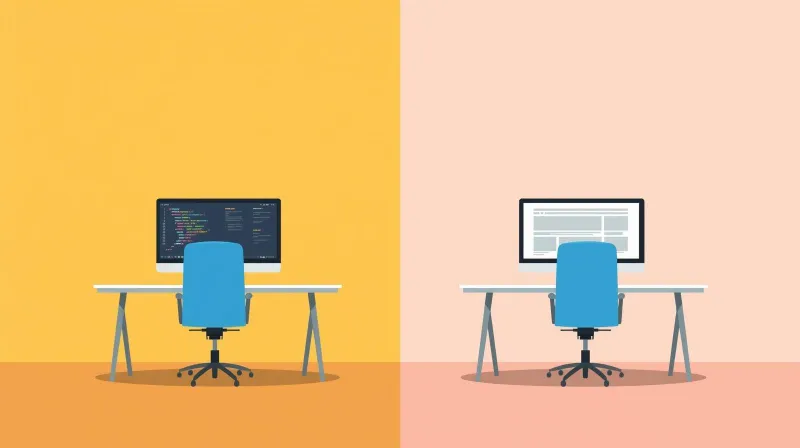
Not everything needs staging. Knowing when not to use it is just as important as knowing when to use it.
| Use Staging For | Skip Staging For |
|---|---|
| Plugin, theme, and core updates | Publishing blog posts or news items |
| PHP version upgrades | Uploading images or documents |
| Custom development and design changes | Editing existing page content |
| Major content reorganization | Adding new events or calendar entries |
| New plugin installation and configuration | Routine content updates by editors |
| Anything that changes how the site functions | Anything that changes what the site says |
We have clients who regularly post event notices and ask, "Can we stage this?" Spinning up an entire WordPress staging environment, especially one with complex CRM integrations and payment gateways that need configuration, just so a VP can preview a page before it goes live, when we've done hundreds of these, that's not a good use of staging.
For content approval, we use drafts, previews, screenshots, screen shares, and videos. Some clients say, "I don't want to log in, I want to see it without the admin bar." That's an education issue, not a staging issue.
We hold our ground. We're not deploying a full staging environment just so someone can approve a page without seeing the admin bar.
Staging is for development work and major changes, not for editorial workflows. If you want to preview a blog post before publishing, use the Preview button. If you want a colleague to review a page layout, share a screenshot. Save staging for the work that genuinely needs a protected testing environment.
Staging Is a Development Tool, Not a Content Tool

A WordPress staging site is a strategic tool, used intelligently for specific development projects or major changes that need review. They're not version control tools. They're not editorial workflow tools unless you create a very strict process around them.
The "point-and-click developer" problem is real: people who hire themselves out as web developers but can't write code, don't understand servers or PHP, and do all their work directly on the production site, installing plugin after plugin under client pressure. That's exactly where staging should be used.
Staging is part of the development workflow, not the content workflow. It's an incredibly powerful tool for development teams, and it can be spun up occasionally as a sandbox for content creators, but that's the exception, not the rule.
When we explain the limitations to nonprofit and association clients, very few of them actually end up using staging for content work. That reinforces the core point: this is a developer's tool, not a website owner's tool. And the fact that your development team uses it consistently is one of the clearest indicators of whether they're working at a professional level.
Need Professional Staging Workflows?
If you're managing a WordPress site for a nonprofit or association and want staging done right, without the database headaches or the guesswork, contact our team. Staging is built into how we work for every client, every week. It's not an add-on. It's the standard.