If you've worked with a web developer or a managed hosting provider, you've probably heard the term "staging site" or "staging environment." Maybe your developer mentioned it during an update. Maybe your hosting company offers a "one-click staging" feature. Maybe you just nodded and moved on because there were more pressing things to deal with.
That's understandable. Staging is a concept that matters enormously to how your website is maintained. Still, it rarely gets explained well to the people who actually need to understand it: the executives, operations managers, and communications professionals responsible for keeping an organization's digital presence running.
Let's fix that.
What Is a Staging Site? The Actual Definition

The simplest staging site is a private copy of your live website. A staging site exists in a separate environment where changes can be made and tested without affecting the website your visitors see. When everything checks out on the staging copy, those changes get pushed to your live (production) site.
But here's the distinction most staging website definitions miss: staging is a workflow tool, not a content process. Most people hear "staging" and think of it as a place to preview content before publishing. It isn't. It's a development environment where technical changes get tested before they touch your live site. That difference matters, and misunderstanding it is where most staging problems start.
In WordPress specifically, what is a staging environment in practice? It's a complete clone of your website, running on a different URL that isn't visible to the public or search engines. It includes your theme, plugins, content, and settings. Your developer makes changes there, verifies that everything works, and applies those changes to the real site only then.
The key principle: your visitors never see work in progress.
Why Staging Matters for Your Organization
If you're running a personal blog, a broken website is an inconvenience. If you're running a nonprofit's website, an association's member portal, or an organization that processes online donations and event registrations, a broken website is a crisis.
Here's what can go wrong without staging:
Plugin updates break things. WordPress plugins update frequently, and sometimes an update to one plugin creates a conflict with another. WordPress 6.9 broke three major plugins at launch, including WooCommerce, Yoast SEO, and Elementor. Sites that applied the update directly to production broke. Sites that tested updates on staging first caught the problem before visitors saw it.
Code changes have bugs. Even experienced developers introduce bugs during development. That's normal. What isn't normal is discovering those bugs on your live site while members are trying to log in or donors are trying to contribute.
Content reorganization can go sideways. Someone does a content cleanup, deletes a bunch of pages, empties the trash, then realizes they removed something critical. On a staging site, that mistake is caught before anything permanent happens on production.
PHP upgrades break older code. When your hosting environment upgrades to a newer version of PHP (the programming language WordPress runs on), older plugins and custom code may become incompatible. Without staging, you discover this after the upgrade, when your site is already broken.
For organizations like the ones we work with, including medical certification boards, national professional associations, and nonprofits serving vulnerable populations, downtime isn't just inconvenient. Members can't access resources. Donation forms stop working. Board certification exams go offline. The stakes are real.
What Is a Staging Environment in the Development Workflow
To fully understand what a staging site is, it helps to know where it fits in the bigger picture. Professional WordPress management typically involves three environments.
Development (Local): This is where code gets written. Developers run WordPress on their own machines, building features and fixing bugs. No one else sees this environment.
Staging: This is the testing environment. It mirrors production as closely as possible. Changes from development get deployed here for review, testing, and client approval before going live.
Production: This is your live website. The one your visitors, members, and donors interact with. Changes only arrive here after passing through staging.
The flow goes in one direction: development, staging, and production. Code moves forward, eventually pushed from staging to production after verification. Data (your content, your users, your orders) flows backward, from production to staging, so that testing happens against real data.
This workflow is the professional standard. If your developer or agency skips the staging step and makes changes directly on your production site, that's a red flag worth paying attention to.
The WordPress Database Problem Nobody Explains Well
Here's where the staging site's meaning gets more complicated than simple definitions suggest, and where most tutorials stop being useful.
WordPress has two parts that matter here: files (your theme, plugins, and core code) and a database (your content, settings, user accounts, form submissions, and everything that makes your site yours). We cover the full technical breakdown in our staging environments guide, but here's what you need to know as a decision-maker.
Staging works beautifully for file changes. Theme modifications, plugin updates, code changes. All safe to test on staging and push to production.
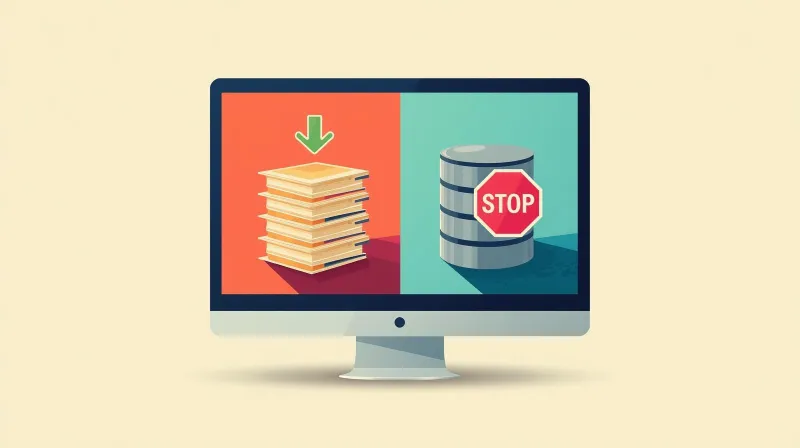
The database is where everything breaks down. There is no magic merge. WordPress databases don't merge. They overwrite.
When someone says "push staging to live," they either mean replacing your live database with the staging copy or pushing only file changes and leaving the live database alone. No option allows WordPress to combine changes from both environments intelligently.
What this means for your organization: if you create a staging site on Monday and push its database to production on Friday, you've just overwritten everything that happened on the live site during that week. Form submissions, member registrations, donation processing records. All of it, potentially gone.
The only way to use staging for database-level content changes is to freeze production. No changes allowed until staging is reviewed and pushed. For most of our clients, that's not realistic because they have dynamic data flowing in constantly from members and donors.
Your developer should be able to explain their database strategy in one sentence. If they can't, that's a concern.
How Professionals Actually Use Staging
Understanding the database limitation shapes how experienced WordPress teams use staging. We don't use staging the way most tutorials describe. We use it as a strategic tool for three specific purposes: automated weekly updates, PHP version upgrades, and custom development work. In every case, the workflow is the same: create a fresh staging copy, do the work, push file changes forward, leave the production database alone, and destroy the staging site when the job is done.
The key detail that separates professional staging from amateur staging: a human never sees the staging site for routine updates. Our automated system handles the weekly update cycle, creates staging environments, runs updates, tests the results, and escalates only to manual review when something fails. Your visitors never know it happened.
For development work, we explain the database reality up front. The staging copy will drift from production while we work on a feature. That's expected. When the work is approved, only file changes get pushed. The live database stays untouched.
For PHP upgrades, we stage the site on a new server running the newer PHP version. If testing passes, traffic gets redirected to the new instance. The staging site becomes production. If testing fails, production is unaffected because it's still running on the original server.
What Staging Is Not
Now that you understand what a staging site is, it's important to clarify what it isn't. There are common misconceptions that cause real problems when they go uncorrected.
Staging is not a content preview tool. If you want to see what a blog post looks like before publishing it, use the Preview button in WordPress. If you want a colleague to review a page layout, share a screenshot or a screen recording. Staging is for development work and major technical changes, not for editorial approval of routine content updates.
When we explain the database limitations to nonprofit and association clients, very few actually want to use staging for content work. The only way to make it work for content is to freeze production entirely, and for organizations with active member portals and donor systems, that's rarely practical.
Staging is not permanent. A staging site should last a few days to a few weeks for a large development project. Then it gets destroyed and rebuilt from a fresh copy of production when you need it again.
We've seen clients maintain staging sites for years, then wonder why they're "missing months of content." The answer: production kept moving while staging sat still. Staging is ephemeral by design. Create it, use it, destroy it.
Staging is not a backup. A staging site is a working copy, not an archive. If you need to restore your site to a previous state, that's what backups are for. Staging and backups serve completely different purposes.
Staging is not version control. It doesn't track individual changes or let you selectively undo specific edits. Version control is a separate discipline with its own tools. Staging lets you test a set of changes before they go live, but it doesn't record their history.
When Staging Is Overkill
Knowing when not to use staging is just as important as knowing when to use it. Not every action on your website needs a staging environment.
| Use Staging For | Skip Staging For |
|---|---|
| Plugin, theme, and core updates | Publishing blog posts or news items |
| PHP version upgrades | Uploading images or documents |
| Custom development and design changes | Editing existing page content |
| Major content reorganization | Adding new events or calendar entries |
| New plugin installation and configuration | Routine content updates by editors |
| Anything that changes how the site functions | Anything that changes what the site says |
The distinction is simple: staging is for changes that affect how your website works. Content changes that affect what your website says can be made safely in production using WordPress's built-in drafts and previews.
What to Ask Your Web Team About Staging
If someone else manages your WordPress site, whether that's a developer, an agency, or a hosting provider, here are the questions worth asking.
"Do you test updates on staging before applying them to our live site?" The answer should be yes, every time. If the answer is "we just apply updates and check if everything works," that means your live site is the testing environment. Your visitors are the quality assurance team.
"How do you handle the database when pushing staging to live?" This tells you whether they understand the database merge problem. If they look confused by the question, that's a concern.
"What's your rollback plan if something goes wrong?" A professional team has a plan before they push anything to production. That plan starts with a fresh backup taken immediately before the deployment.
"How often is our staging environment refreshed from production?" A staging site that hasn't been synced with production in months is testing against a different website. It should be created fresh for each project or update cycle.
These aren't trick questions. They're the basics of professional WordPress staging workflows. Understanding what a staging environment is means knowing the right questions to ask. Any qualified team should be able to answer them clearly.
How to Set Up a Staging Environment
If you're ready to implement staging for your WordPress site, the setup process depends on your hosting environment. Most managed WordPress hosts offer one-click staging creation, while sites on budget hosting can use staging plugins to fill the gap. The setup is straightforward; the workflow discipline that follows is what makes staging effective.
Staging Is a Professional Standard, Not an Optional Extra
Development work should never happen on a production website. Period. It doesn't matter how skilled the developer is. Bugs happen during development, and production is not a playground.
Here's a direct way to evaluate your current provider: if your developer can't set up a staging site, they're not a real developer. That sounds harsh, but it's the reality. Setting up staging is a fundamental skill.
People who hire themselves out as web developers but can't write code, don't understand servers or PHP, and do all their work directly on the production site, installing plugin after plugin under client pressure, that's exactly the kind of work that staging exists to protect against.
Here's how we think about it: if we come across a site maintained by another agency that tells us "go to this URL to see what we're working on," and it's the production site, we know immediately what that means. If they're skipping staging, what else are they skipping? Backups? Security monitoring? Performance optimization?
Staging is part of the professional WordPress development workflow. It's not something that gets set up only for big projects. For every update, every code change, every technical modification, staging is the standard. The fact that your development team uses it consistently is one of the clearest signals of whether they're working at a professional level.
Need a Team That Uses Staging the Right Way?
If your organization's website is critical to your mission, and your current provider isn't using staging as part of their regular workflow, it might be time for a conversation. Learn about our WordPress maintenance services and what professional maintenance actually includes.