WordPress updates are one of those things everyone knows they should do, but few people have a real strategy for them. Most site owners fall into one of two camps: they either update everything the moment they see that notification badge, or they ignore it until the number gets so high it becomes anxiety-inducing.
Neither approach is great.
The reality is that WordPress has four distinct types of updates, each with a different risk profile, urgency, and consequences if you get it wrong. Treating them all the same is how sites break. And ignoring them all equally is how sites get hacked.
We manage updates across roughly 200 WordPress sites every week. That volume has taught us which updates deserve immediate attention, which ones can wait, and which ones require careful planning. This article is our complete WordPress update guide, outlining the framework we use so you can make informed decisions about your update strategy.
The Four Types of WordPress Updates

Most guides cover only three types of WordPress updates: core, plugins, and themes. They leave out the fourth, PHP, which is arguably the most consequential. Here's how each one works and the risk it carries.
| Update Type | Example | Risk | Urgency | Action |
|---|---|---|---|---|
| Security/Maintenance | 6.8 to 6.8.1 | Very Low | Within 24-48 hours | Apply immediately |
| Minor Version | 6.8 to 6.9 | Low | Weekly maintenance | Batch with routine updates |
| Major Version | 6.x to 7.0 | Medium-High | 1-2 weeks | Test on staging first |
| PHP Version | 8.2 to 8.3 | High | Quarterly planning | Migrate to new server |
WordPress Core
WordPress core updates come in two flavors.
Minor releases (like 6.9 to 6.9.1) are bug fixes and security patches. They are small, targeted, and safe. WordPress has auto-installed these since version 3.7, and for good reason. In our experience, minor core updates almost never cause problems.
Major releases (like 6.9 to 7.0) are a different story. They introduce new features, change APIs, and sometimes alter how WordPress fundamentally works. The jump from version 4 to 5 introduced the Gutenberg editor and caused widespread compatibility issues.
That said, the core itself is remarkably stable. Only 0.001% of WordPress vulnerabilities exist in core. When a site breaks after a core update, the culprit is almost always a plugin or theme that is incompatible with the new version.
For a deeper look at what major core releases mean for your site, read our guide on WordPress core updates.
Plugins
Plugins are where the real risk lives. They account for 96% of all WordPress vulnerabilities, with over 7,600 discovered in 2024 alone. That is roughly 22 new plugin vulnerabilities per day.
And a third of those vulnerabilities were not patched before they were publicly disclosed.
Not all plugins carry the same level of risk. In our experience, they fall into a few distinct categories:
Low-risk plugins like Classic Editor, Akismet, and simple utility plugins rarely cause issues during updates. These are safe to update promptly.
Medium-risk plugins include established form plugins like Gravity Forms and Contact Form 7. They have large user bases, professional development teams, and well-tested update cycles. Updates are generally safe but worth verifying.
High-risk plugins are those that heavily affect your site's appearance or core functionality: page builders, e-commerce plugins like WooCommerce, and membership systems. A bug in a page builder can produce the white screen of death. A bug in WooCommerce can halt all sales.
For these, we recommend waiting 24 to 48 hours after a major release unless the update is clearly a security patch.
There is also an important distinction within high-risk plugins. Some, like membership and e-commerce systems, alter the database during updates. If something goes wrong, rolling back the plugin files alone will not fix it, as the database is already out of sync. Recovery gets much harder.
The following table summarizes how we classify plugin risk and the update timing we recommend for each category:
| Plugin Category | Examples | Risk Level | Update Timing |
|---|---|---|---|
| Low-Risk | Classic Editor, Akismet, simple utilities | Low | Update immediately |
| Medium-Risk | Gravity Forms, Contact Form 7, Ninja Forms | Medium | Update within a few days |
| High-Risk (UI) | Page builders (Elementor, Divi), WooCommerce | High | Wait 24-48 hours on major releases |
| High-Risk (Database) | Membership, e-commerce, event RSVP systems | Critical | Staging test required; file rollback alone will not work |
We cover the timing question in detail in when not to update WordPress plugins.
Themes
Themes account for about 4% of WordPress vulnerabilities. Theme updates are generally lower risk than plugin updates, but they can cause visual regressions, such as layout shifts, broken custom CSS, and changes to widget areas. If you are running a child theme, you need to verify that parent theme updates do not override your customizations.
PHP
PHP is the server-side language that WordPress runs on. While it is not technically a WordPress update, PHP version management is inseparable from WordPress maintenance, and most guides do not even mention it.
Here is why it matters:
- Performance improvements between PHP versions can be 20-30%
- Old PHP versions stop receiving security patches entirely
- WordPress itself is raising its minimum requirements -- WordPress 7.0, expected in April 2026, drops support for PHP 7.2 and 7.3
Sites still running those versions will need to upgrade PHP before they can update WordPress.
We handle PHP upgrades differently from other updates. We never upgrade the server that sites are on. Instead, we set up a new server with the newer PHP version, clone sites one by one, run our tests, and repoint the firewall. That means zero downtime during the switchover.
It is a fundamentally different approach from what most hosting companies do: mass-upgrade the server and leave you to deal with the fallout.
For a full walkthrough of what PHP upgrades involve, see our PHP version upgrade guide.
WordPress Update Best Practices: The Order That Minimizes Risk
There is genuine debate in the WordPress community about whether you should update core first or plugins first. Both sides have reasonable arguments. But in practice, the order matters less than two other things: updating one thing at a time, and having a backup you can restore from.
That said, here is the order we follow across our fleet:
- PHP (when applicable, planned and tested separately)
- WordPress core
- Plugins (one at a time)
- Theme
| Step | Component | Why This Order | What to Check After |
|---|---|---|---|
| 1 | PHP (if upgrading) | Foundation layer | Plugin compatibility, error logs |
| 2 | WordPress Core | Plugins test against latest core | Homepage, key pages, admin login |
| 3 | Plugins (one at a time) | Isolate conflicts | Plugin-specific functionality |
| 4 | Theme | Lowest impact | Visual appearance, responsive layout |
Why this order:
- PHP comes first because it is the foundation that everything else runs on
- Core comes next because plugin and theme developers test their updates against the latest WordPress version
- Plugins are updated individually so that if something breaks, you know exactly which one caused it
- Theme goes last because it is the least likely to cause functional issues
Among WordPress update best practices, the most important is to never hit "Update All." We cannot stress this enough. Updating everything simultaneously means that if something breaks, you have no idea whether it was a plugin, a theme, or core. You are left guessing, and guessing costs time and money.
As we tell our clients: Update All is like crossing a road blind. You might make it, but you probably will not.
For a complete update workflow, including pre-update checklists and post-update testing, read how to update WordPress safely.
When to Update: A WordPress Update Strategy for Every Scenario

Not every update deserves the same response time. Here is how to think about urgency:
Security patches: update within 24-48 hours. When a plugin vulnerability is disclosed, attackers begin scanning for vulnerable sites almost immediately. Millions of exploit attempts have targeted known plugin flaws a full year after patches were available. Security updates are not optional, and they are not something you can defer to next month's maintenance window.
Major feature releases: test first, update within 1-2 weeks. Major WordPress versions, big plugin version bumps, and theme overhauls all deserve testing on a staging environment before they go live. Let early adopters surface the issues first.
Minor maintenance updates: batch during your regular schedule. Bug fixes, minor improvements, and translation updates can wait for your weekly maintenance window. These are low-risk and low-urgency.
PHP version changes: plan quarterly and coordinate carefully. PHP upgrades require testing every plugin and theme for compatibility. This is not something to do on a Friday afternoon. Plan it, test it on staging, and execute it during a low-traffic period.
The frequency of your update schedule matters more than most people realize. Weekly updates mean 52 rounds of security and performance patches per year. Monthly drops to 12. That is a huge difference.
Your website is measurably more secure and more stable with weekly WordPress updates.
For a practical update cadence you can follow, see our WordPress update schedule guide.
Auto-Updates: Convenient, But Not a Strategy
WordPress now lets you toggle auto-updates for individual plugins, and the temptation to turn everything on and forget about it is real. For simple brochure sites with a handful of well-maintained plugins, auto-updates can work. They are certainly better than never updating at all.
But for complex sites -- e-commerce stores, membership platforms, or anything with custom development -- auto-updates introduce a real risk. There is nothing worse than an automatic update going through overnight and coming into the office the next morning to find your website is down.
Our position is straightforward. For sites with professional management, turn auto-updates off and rely on your support team's systems instead. Those systems are designed to test updates before they reach production. WordPress's built-in auto-update feature skips that step entirely.
"Auto-updates are better than nothing. But for clients with managed hosting, turn them off and rely on your support team's systems instead."
We go deeper into this decision in our WordPress auto-updates guide.
What Happens When You Defer

The other side of the coin is putting updates off indefinitely. This is equally risky, and the costs compound over time.
From a security standpoint, every week you skip is another week of unpatched vulnerabilities sitting open on your website. Over 50,000 sites are flagged for malware weekly, and 52% of known vulnerabilities are due to outdated plugins. The security case for regular updates is not debatable.
From a practical standpoint, deferred updates create a snowball effect. Dealing with one plugin conflict from a batch of three or four pending updates is manageable. Dealing with a conflict buried in 30 pending updates after six months of neglect is a different problem entirely.
You may not be able to roll back cleanly because the surrounding software has moved on without you. Older plugin versions may not be compatible with the current core. Commercial themes may have been abandoned by their developers.
We saw exactly this kind of disaster play out with a professional association running WP Membership Pro. The site had a complex stack of add-ons built around the membership plugin: a geolocation plugin, a mapping plugin to display member locations, directories with search functionality, and multiple subscription levels with expiration management.
When FatLab inherited the site, our SafeUpdates system had already flagged incompatibilities. We were holding off on updates while we developed a strategy to stabilize everything, and the director was aware of the plan.
The night before they launched a major communication effort to thousands of members, a different employee -- unaware of the situation -- saw the high pending update count and hit Update All. Not all the add-ons had matching updates available. The core membership plugin jumped several major versions. WordPress core was updated by at least one major version. The commercial theme was updated after years of neglect.
"The entire system became incompatible with itself. Nearly every feature and function on the website broke."
Because the membership plugin had altered the database during its update, a simple file rollback would not work. We had to perform a full restore from a backup taken earlier that day. The client lost all the updates and campaign preparations they had made during that final day, and their campaign had to be delayed.
We have onboarded many sites over the years that had not been updated in a long time. Those sites always take the most work. Sometimes, we have had to place them on a legacy server running an older PHP version because no one forced the upgrades. Sometimes we have had to rebuild parts of the website because the plugin setups were so outdated that they could not be brought up to date.
Deferred maintenance is not a cost-saving. It is a deferred cost with interest.
For the full picture on what neglected updates actually cost, read the cost of deferred WordPress updates.
How We Manage WordPress Updates Across 200 Sites
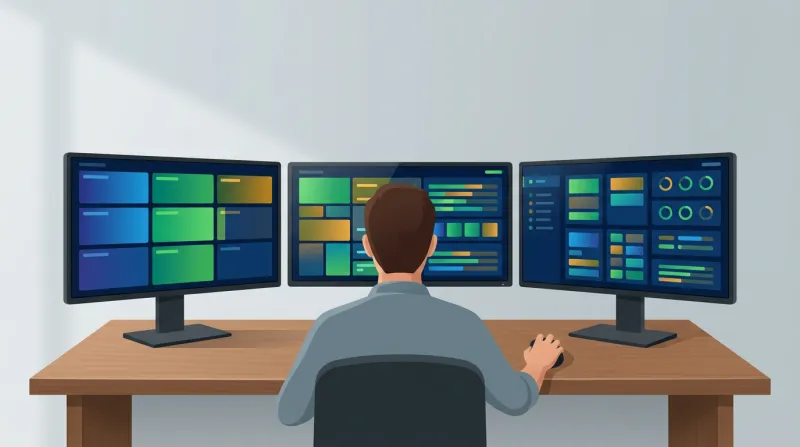
At FatLab, we use an automated system called SafeUpdates that runs weekly updates across our entire fleet. Here is how it works.
The system spins up a virtual server, copies the site over, and applies updates to that staging environment. It then runs automated tests: checking for errors in the logs and performing visual regression testing that compares screenshots of key pages against the production site.
If no errors are found, the system automatically applies all updates to production. If there is an issue, the updates are not applied, and our DevOps team gets a notice to investigate manually.
This gives us the best of both worlds. Routine updates run most weeks automatically. Human eyes are on the system when something needs attention. The pending update count on our clients' sites never gets very high, which removes the temptation to hit that Update All button.
The system also triggers updates outside the regular weekly schedule when high-severity vulnerabilities are patched.
"Without an automated system tied into a large vulnerability knowledge base, you're not going to know when those urgent patches are released. Every missed week is that many more vulnerabilities sitting open on your website."
This kind of infrastructure is what separates a hands-on support company from a standard hosting provider. It is the same reason we do PHP upgrades by migrating sites to new servers rather than upgrading in place. The goal is always zero risk and zero downtime, even when things go wrong.
Knowing When to Get Help
You need someone -- whether in-house or outsourced -- who knows how to handle these updates, knows what to do when one goes wrong, and does it regularly. Minimum weekly.
If you have someone on your team who is comfortable troubleshooting a white screen of death at 2 AM, managing plugin conflicts, and keeping PHP up to date, then knowing how to manage WordPress updates in-house can work. But for most organizations -- especially nonprofits, associations, and businesses without dedicated technical staff -- the math usually favors professional maintenance.
"The executive director's job is to focus on pushing their mission forward. It is our job to ensure your website is up and running at all times. We don't try to mix those roles."
For a few hundred dollars a month, you can make sure your investment is protected, your site is secure, and your team can focus on what they are actually good at instead of worrying about update notifications.
If you are looking for that kind of coverage, our WordPress maintenance services are built specifically for organizations that need reliable, hands-off update management. You can also read more about why organizations choose FatLab for WordPress maintenance.