
If you have ever wondered how often to update WordPress, you are not alone. "Update when there's an update" is the most common answer, but it is not a schedule. In practice, it leads to one of two outcomes: either someone logs in every day chasing individual plugin patches, or updates pile up until someone sees that red notification badge and hits Update All at the worst possible time.
A real WordPress update schedule distinguishes between update types, assigns each one a cadence, and builds in time for testing. Here is the framework we use across 200+ WordPress sites at FatLab, and the reasoning behind each timeframe.
The 52 vs. 12 Problem
Before we get into the framework, here is the number that should shape your thinking.
Weekly updates mean 52 rounds of security and performance patches per year. Monthly updates mean 12. That is not a small difference.
You are literally updating 40 fewer times over 12 months, and you can measure that gap in terms of security exposure.
"You've got to be doing updates weekly. If you're updating weekly, that's 52 times a year you're applying performance and security patches. Monthly drops are reduced to 12 times a year. That's a huge difference."
Every week without updates is another week of unpatched vulnerabilities sitting on your site. According to Patchstack's 2025 research, 96% of WordPress vulnerabilities come from plugins, and when weighted by exploitation intensity, the median time from vulnerability disclosure to first exploit is just five hours.
The attackers are not waiting around. Your update schedule should not be, either.
Monthly is better than nothing. But a weekly WordPress update schedule should be the target.
The Four-Tier WordPress Update Schedule

Not every update carries the same risk or urgency. The right WordPress update cadence depends on what type of update you are dealing with. The schedule we recommend breaks updates into four tiers, each with a different cadence and process.
| Tier | Timing | What Gets Updated | Testing Required | Risk if Missed |
|---|---|---|---|---|
| Immediate | Within 24-48 hours | Security patches (core and plugins), critical vulnerability fixes | Quick verification | Very high: exploits active within hours |
| Weekly | Tuesday or Wednesday | Routine plugin and theme updates, minor core releases | Forms, homepage, key pages | Medium: vulnerability window grows |
| Monthly | 1-2 weeks after major WP release | WordPress major versions, plugin major versions, database cleanup | Full staging test | Medium-high: compatibility gaps widen |
| Annual | Once per year | Full plugin audit, remove abandoned plugins, PHP version review, backup system check | N/A (strategic review) | Low short-term, high long-term |
Tier 1: Immediate (Within 24-48 Hours)
What gets updated: Security patches for WordPress core, critical plugin vulnerabilities, maintenance releases.
WordPress maintenance and security releases (for example, 6.7 to 6.7.1) are vulnerability patches and bug fixes. They are designed to be safe and non-disruptive. Most WordPress installations auto-update these by default, and we leave that setting enabled even for our managed clients.
For plugin security patches, the timeline is tighter than most people realize. Half of high-impact WordPress vulnerabilities are exploited within 24 hours of public disclosure. If you are not monitoring security advisories from sources like Wordfence or Patchstack, you may not even know a critical patch has been released until it is too late.
An automated system tied into a vulnerability knowledge base makes the biggest difference at this tier. Without one, you are relying on manually checking dashboards and hoping you catch a critical patch the same day it drops.
Tier 2: Weekly (Routine Plugin and Theme Updates)
What gets updated: Non-security plugin updates, theme updates, minor feature releases.
This is the core of the schedule. Pick a day, ideally Tuesday or Wednesday, and batch your routine updates together. Avoid Fridays. Nobody wants to discover a broken site heading into the weekend.
Weekly batching is efficient. One testing session covers all your pending updates. You review changelogs, apply the updates, check that forms still work, confirm the homepage loads correctly, and move on. The whole process takes 15 to 30 minutes for a straightforward brochure site.
The alternative, updating each plugin individually as it releases, sounds thorough but is impractical at scale. A typical WordPress site runs 15 to 25 plugins. If each one releases an update every two to four weeks, you are looking at constant interruptions rather than a single focused maintenance window.
There is one important exception within your weekly batch: handle major plugin upgrades individually rather than bundling them with everything else. If a page builder jumps from version 4.x to 5.0, update that on its own. If something breaks, you will know exactly what caused it.
Tier 3: Monthly (Major Version Updates)
What gets updated: WordPress major version releases, database optimization, and performance review.
WordPress ships approximately three major releases per year. In 2026, that means WordPress 7.0 in April, 7.1 in August, and 7.2 in December. When a major release lands, do not update the same day.
Wait one to two weeks. This gives plugin developers time to ship compatibility updates and the community time to surface edge-case bugs. Then test on a staging environment before pushing to production.
Run major core updates in isolation. Do not mix them with plugin updates. Take a backup first, apply the core update, test your site, and only then resume your normal weekly plugin cycle.
"Run a major core update on its own. Don't mix it with an Update All. If something goes wrong, you need to know it's the core and nothing else."
Your monthly check-in is also a good time to run database cleanup (clear post revisions, spam comments, and expired transients) and check Core Web Vitals to make sure nothing has drifted.
Tier 4: Annual (Full Audit)
What gets reviewed: Plugin inventory, abandoned plugins, PHP version, hosting performance, backup procedures.
Once a year, step back from routine updates and audit the full picture. The most important task here is identifying abandoned plugins. If a plugin has not been updated in 12 months, the developer may have walked away from it. That plugin is no longer receiving security patches, which means it is a risk no update schedule can address.
Remove abandoned plugins entirely. Do not just deactivate them. Deactivated plugins remain on your server and may still contain exploitable code. Delete them and find alternatives.
Your annual audit should also include:
- Review of your PHP version
- Hosting performance evaluation
- SSL certificate status
- Backup and disaster recovery procedures
Adjusting WordPress Update Frequency by Site Type
The four-tier framework applies broadly, but the ideal WordPress update frequency shifts depending on what your site does and how much risk it carries.
| Site Type | Risk Profile | Staging Required? | Weekly Time Estimate | Key Concern |
|---|---|---|---|---|
| Brochure/Blog | Low | Optional | 15-30 minutes | Content visibility |
| E-commerce | High | Yes, for major updates | 30-45 minutes | Payment processing, checkout |
| Membership/LMS | High | Yes, for major updates | 45-60 minutes | User access, billing |
| Multi-site fleet | Medium-High | Selective | 30-90 minutes (varies) | Consistency across sites |
Brochure and informational sites can follow the standard schedule with minimal staging. The risk profile is low. If a plugin update causes an issue, the impact is limited.
E-commerce and membership sites need staging testing built into the weekly cycle, not just for major updates. Plugins that alter database tables during updates, such as WooCommerce or membership systems, carry a higher rollback risk.
If you need to revert a database-altering plugin, replacing the files alone will not fix it because the database is now out of sync. This is the scenario that turns a 15-minute fix into a multi-hour recovery.
Multi-site organizations face a multiplied version of every risk. If you manage multiple sites using some of the same plugins and themes, discovering that one site is completely incompatible after months of neglect is troublesome.
Discovering that two or more are incompatible and completely out of date is a much more expensive proposition.
"For multi-site organizations, this is even more important. The cost difference between catching an issue at one year of neglect versus two years is massive."
Batch Updates vs. Drip Updates
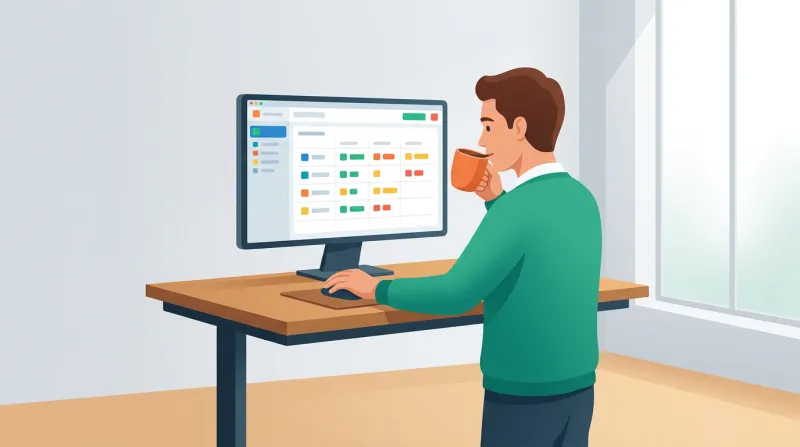
The batch approach (accumulate updates and apply them all on your scheduled day) is what we recommend for routine plugin and theme updates. It is efficient, predictable, and easier to build into a team workflow.
That said, batching is not the same as hitting Update All. Batching means applying your pending updates on a scheduled day with a plan. Update All means clicking a button and hoping for the best.
"Update All is like crossing a road blind. You might make it, but you probably won't."
The common objection is that batching makes it harder to identify which update caused an issue. That is true. But in practice, the vast majority of weekly plugin updates apply without any problems. When an issue does occur, you can narrow it down by checking file modification dates and rolling back individual plugins from backup.
The drip approach (updating each plugin as soon as a new version is available) is impractical for most organizations. It creates constant low-level disruption and requires near-daily monitoring. For a site with 20 plugins, you could be running individual update-and-test cycles multiple times per week.
The hybrid that works best: batch your low-risk and medium-risk updates weekly. Handle high-risk plugin updates individually with more caution and testing.
Classifying Plugin Risk
Not all plugins carry the same update risk. The more a plugin controls your site's front end or alters the database, the more carefully you should handle its updates.
| Risk Level | Examples | Major Release Wait | Special Handling |
|---|---|---|---|
| Low | Classic Editor, Akismet, simple utilities | None needed | Batch in weekly updates |
| Medium | Gravity Forms, Contact Form 7 | Optional | Batch in weekly updates |
| High | Page builders, WooCommerce, membership | 24-48 hours | Staging first for major versions |
| Database-Altering | E-commerce, membership, event RSVP | 24-48 hours | Staging plus full backup required |
Low-risk and medium-risk plugins can go into your weekly batch without a second thought.
High-risk plugins, especially those that control the user interface or process transactions, deserve individual attention on major version jumps.
Database-altering plugins are the highest-risk category because a failed update cannot be fixed by simply rolling back the plugin files. The database has already changed, and restoring file-level backups alone will leave your site in an inconsistent state.
What a Managed Maintenance Service Handles
If maintaining this schedule sounds like a lot of overhead, that is because it is. For organizations with one or two simple sites and a technically comfortable staff member, a weekly DIY routine is achievable. For organizations running complex or mission-critical sites, the math often favors outsourcing.
At FatLab, we use an automated system called SafeUpdates. It runs updates weekly for all themes, plugins, and core. It also triggers updates outside the regular schedule when critical vulnerabilities are patched.
The system spins up a virtual server, copies the site, applies updates to the staging environment, runs automated tests (error logs and visual regression comparisons), and pushes to production only if everything passes. If there is an issue, our DevOps team gets a notice and investigates manually.
The result is the best of both worlds: automated updates that run most weeks smoothly, and human eyes on the system when something goes wrong.
We all get busy and distracted. It is hard to maintain a disciplined weekly schedule without a system backing it up.
And the hardest piece to replicate on your own is critical vulnerability monitoring. Without an automated system tied into a large vulnerability knowledge base, you will not know when those critical patches are released. Every missed week is that many more vulnerabilities sitting open on your website.
Building Your WordPress Maintenance Schedule
Here is a practical starting point you can adapt:
Every day: Automated minor core security updates (WordPress handles this by default). Monitor uptime.
Every week (pick a consistent day): Review and apply pending plugin and theme updates. Check changelogs. Test forms, key pages, and basic functionality after updating. Budget 15 to 45 minutes, depending on site complexity.
After each major WordPress release (3x per year): Wait one to two weeks for community stabilization. Test on staging. Apply the core update in isolation. Resume normal plugin cycle afterward.
Every quarter:
- Audit plugins for abandonment (no updates in 6+ months)
- Remove unused themes and plugins
- Rotate admin credentials
- Review security logs
Every year:
- Full plugin inventory and technology stack review
- Evaluate hosting performance
- Review the PHP version
- Check backup and disaster recovery procedures
- Remove anything you are no longer using
The Schedule Is the Easy Part
Knowing the right cadence is straightforward. The hard part is consistently sticking to your WordPress maintenance schedule, week after week, across every site you are responsible for. The organizations that keep their WordPress sites secure and stable are the ones that treat updates as a recurring process, not an occasional chore.
If you are looking for a team to manage your WordPress update schedule, that is exactly what our WordPress maintenance plans are built for. We run this schedule across 200+ sites every week, and we have the systems in place to do it reliably.
If you want to understand the full picture of WordPress updates, our WordPress Update Guide covers all of it, including: