
"Always update your plugins immediately."
You have heard this advice a hundred times. It is correct about half the time.
Security patches should be applied immediately, no exceptions. But a plugin jumping from version 3.x to 4.0 is not a security patch. It is a major release with new features, rewritten code, and a completely different risk profile.
Treating both with the same urgency is how sites end up broken.
At FatLab, we manage roughly 200 WordPress sites. We update plugins every week. And we have learned that the smartest update strategy is not "update everything now."
It is knowing which updates to apply immediately, which to delay by a day or two, and which to test on staging before they ever touch production.
Here is the framework we use.
Security Updates: No Waiting, No Exceptions
Let us get this out of the way first. When a plugin releases a security patch, you update immediately within 24 to 48 hours at the most.
Vulnerability disclosures become public knowledge fast. Once a patch is released, attackers know exactly what the vulnerability was and start scanning for sites that have not applied it yet.
Every hour you wait is an hour your site is a known target.
How do you know if an update is a security patch? Check the changelog. If it mentions "security fix," "vulnerability," or a CVE number, that is your signal. Security plugins like Wordfence and Patchstack also issue alerts when known vulnerabilities are patched.
The rest of this article is about everything else.
The Version Numbers Tell You Everything
Most plugins follow a version numbering system called semantic versioning: X.Y.Z (Major.Minor.Patch).
- Patch updates (5.2.1 to 5.2.2): Bug fixes only. No new features. These are the lowest-risk updates and are generally safe to apply promptly.
- Minor updates (5.2.x to 5.3.0): New features added in a backward-compatible way. Medium risk. Worth reviewing the changelog first.
- Major updates (5.x.x to 6.0.0): Breaking changes. New architecture. Possibly database schema changes. These are the highest-risk updates and the ones where patience pays off.
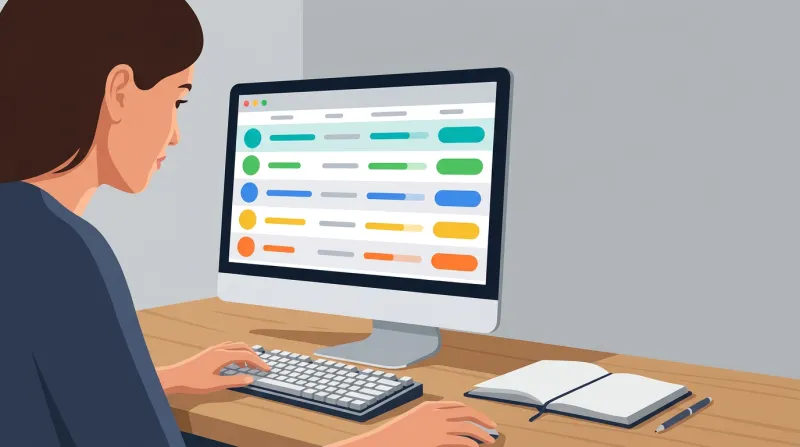
The problem is that WordPress does not distinguish between these in the dashboard. A patch fix and a major overhaul look identical in your update notifications.
That little orange number does not tell you whether clicking "Update" is routine maintenance or a roll of the dice.
The Case for a 24 to 72 Hour Wait
Plugin developers are human. Updates sometimes ship with bugs that were not caught in testing. When you update on day one, your site is part of the real-world testing pool.
Here is what typically happens after a major plugin release:
Day 1 to 2: Early adopters apply the update. Major bugs surface in WordPress.org support forums and social media.
Day 3 to 5: The plugin developer releases a follow-up patch (for example, version 6.0.1) fixing the most commonly reported issues.
Day 7 and beyond: You can update confidently, knowing the worst bugs have already been caught and fixed.
We have seen this pattern play out repeatedly. WooCommerce 10.5 changed how product variation selection worked, breaking stores with custom configurations. Stores that updated immediately had broken product pages until the revert in version 10.5.2.
Stores that waited a few days skipped the problem entirely.
This is not theoretical caution. It is practical experience from watching these situations unfold across hundreds of sites.
Not All Plugins Carry Equal Risk
"The simple framework is: if a plugin heavily determines the user experience or the user interface, be more cautious. Wait 24 to 48 hours on major releases."
Here is how we classify plugin update risk:
Plugin Risk Classification
| Risk Level | Examples | Characteristics | Update Timing | If It Breaks |
|---|---|---|---|---|
| Low | Classic Editor, Akismet, WP Mail SMTP | Background operation, narrow function | Update immediately | Simple: deactivate or roll back plugin |
| Medium | Gravity Forms, Ninja Forms, Contact Form 7 | Well-tested, widely used, mature | Within a few days | Simple: roll back files |
| High (UI) | Elementor, Divi, WooCommerce | Controls layout or revenue | Wait 24-48 hours on major releases | Complex: may need full restore |
| Database-Altering | Membership, e-commerce, event RSVP | Modifies database schema during update | Staging test required | Very complex: database out of sync, full restore needed |
Low Risk
Classic Editor, Akismet Anti-Spam, and simple utility plugins. These operate in the background or handle narrow functions.
In our experience, we have never had a meaningful issue updating these right away. The worst case is typically a minor feature that stops working, and you might not even notice.
Medium Risk
The major form plugins are: Gravity Forms, Ninja Forms, and Contact Form 7. These have been around for a long time, are well supported, and have well-tested update cycles.
They are relatively safe to update, but worth keeping an eye on because forms are often the primary conversion mechanism for business websites. A broken form means lost leads.
High Risk
This is where caution matters most. Three categories stand out:
Page builders (Elementor, Divi, WPBakery): A page builder controls your entire website's appearance. A bug does not break one feature. It can cause the white screen of death to appear on every page of your site.
Page builders also create deep dependency chains with dozens of third-party add-ons that rely on their internal code. When the page builder updates, those add-ons may not be ready.
E-commerce plugins (WooCommerce and its extensions): WooCommerce handles real money. A broken checkout means lost revenue, not just a cosmetic issue.
WooCommerce has a massive extension network: payment gateways, shipping calculators, tax plugins, and inventory management. When WooCommerce updates, you may also need to update five other plugins, and each one needs to be compatible with both the new WooCommerce version and the others.
Membership plugins (MemberPress, Restrict Content Pro, WP Membership Pro): These control access to paid content. A broken update means that paying members cannot access what they have paid for, log in, or complete transactions.
For these high-risk plugins, we recommend waiting 24 to 48 hours after a major release. Unless you can clearly see that it is a security patch, give the community time to surface obvious problems.
If a plugin update does break the site before you catch it, our guide on why a WordPress plugin stops working covers the five most common root causes and the diagnostic path back to a working site.
Database-Altering Plugins: The Highest Risk Category
There is a distinction within the high-risk category that most update advice overlooks entirely: plugins that alter your database during an update.
Most plugin updates change PHP files. If something breaks, you can roll back the files, and the site will come back up.
Database-altering updates are different. Membership plugins, e-commerce plugins, and event RSVP systems do not just change files. They restructure how your data is stored.
If you need to roll back after a database-altering update, replacing the files alone will not fix the problem. The database is now out of sync with the files. Recovery is much harder, often requiring a full database restore from backup.
"If a database-altering plugin was updated, rolling back the files alone won't fix it. The database is now out of sync with the files. This is when you really need professional support."
When updating all destroyed a Membership Campaign
We have seen this play out in the worst possible way. A professional association was running its website on WP Membership Pro with a deeply interconnected set of add-on plugins:
- A geolocation plugin for location-based member lookup
- A mapping plugin to display member locations visually
- A directory search plugin
- An expiration management plugin handling multiple subscription tiers
The membership functionality on this website was incredibly plugin-heavy, with each add-on dependent on the core membership plugin's internal data structures.
When FatLab inherited the site, our SafeUpdates system had already flagged incompatibilities across the plugin stack. Due to the complexity, we were holding off on updates while we developed a strategy to stabilize everything.
The director knew about this. We had explained the situation, and they wanted to get through an upcoming membership renewal campaign before hiring us to work on the update strategy.
The night before they launched a large communication effort to thousands of members around the country, another employee, who was not aware of the plan, saw the high pending update count and hit Update All.
The damage was extensive:
- The core WP Membership Pro plugin jumped several major versions
- WordPress core updated by at least one major version
- The commercial theme was updated after years of neglect
- Not all the add-ons had matching updates available
- The database schema changed as part of the membership plugin's multi-version jump, meaning the old data structures were permanently altered
"The entire system became incompatible with itself. Nearly every feature and function on the website broke the night before their biggest campaign of the year."
Because the database had been altered, we could not just roll back the plugin files. The database was now out of sync with the file system, and restoring one without the other would not restore the site.
We had to do a full restore from a backup taken earlier that day. The client lost all the updates and campaign preparations they had made during that final day. Their campaign had to be delayed.
This story illustrates every point in this article at once: why you do not hit Update All, why deferring updates compounds the problem, why database-altering plugins are the highest-risk category, and why internal communication about your website matters.
The Compatibility Chain Problem
WordPress plugins do not exist in isolation. They share PHP functions, JavaScript libraries, database tables, and API endpoints.
When one plugin updates and changes how it works internally, other plugins that relied on the previous behavior can break, even though they have not changed at all.
This is especially visible with page builders. In December 2024, Elementor 3.26 removed a legacy code structure called the Schemes API. Every third-party add-on that referenced those internal classes immediately threw fatal errors.
The affected plugins included popular extensions that had been working fine for years. Some were no longer maintained by their developers, meaning there would never be a compatibility fix.
The lesson: updating one plugin can break three others. The more deeply integrated your plugins are with each other, the more carefully you need to approach updates.
What to Check Before Updating
Before applying any non-security update, spend two minutes on these checks:
Read the Changelog
Look for red-flag language: "breaking change," "database migration," "deprecated," "removed," or "refactored." These signals are higher risk. "Bug fix" and "fixed" signal lower risk.
Changelog Red Flags
| Language in Changelog | What It Means | Your Action |
|---|---|---|
| "Security fix" or "CVE" | Active vulnerability patched | Update within 24-48 hours, do not wait |
| "Breaking change" | Backward-incompatible changes | Wait for community feedback, check add-ons |
| "Database migration" | Database structure will change | Full backup and staging test mandatory |
| "Deprecated" or "Removed" | Feature no longer works | Check if your add-ons depend on it |
| "Refactored" or "Rewritten" | Major internal code changes | Wait 2-3 days, check support forums |
| "Bug fix" | Targeted repair, no structural changes | Safe to apply within a few days |
Check the Support Forums
Sort by recent posts on WordPress.org and look for reports mentioning the new version. If people are reporting problems, you will find them here first.
Look at the Version Jump
A patch update (5.2.1 to 5.2.2) is very different from a major update (5.x to 6.0). Multi-version jumps, where you have fallen behind and need to go from version 1.4 to 2.6, are the riskiest of all.
For high-risk plugins that warrant staging environment testing, take the extra step of applying the update to a copy of your site first.
A Framework, Not an Excuse to Ignore Updates
This article is a case for strategic timing, not for deferring updates indefinitely. The cost of deferred updates compounds quickly. Every week you skip is another week of unpatched vulnerabilities and growing compatibility debt.
The framework is straightforward:
- Security patches: Update immediately. No waiting period.
- Patch updates (X.Y.1 to X.Y.2): Safe to apply within a day or two.
- Minor updates (X.1 to X.2): Review the changelog, then apply within a week.
- Major updates (X.0 to Y.0) from low-risk plugins: Wait 24 to 48 hours for community feedback.
- Major updates from high-risk plugins (page builders, WooCommerce, membership): Wait for the first patch release. Test on staging if possible.
- Database-altering updates: Full backup before applying. Staging test strongly recommended.
Building these timing decisions into a consistent weekly update schedule is what turns this framework into a sustainable practice.
Update Decision Framework
| Question | If Yes | If No |
|---|---|---|
| Is this a security patch? | Update within 24-48 hours | Continue to next question |
| Is this from a low-risk plugin? | Wait 24-48 hours for community feedback | Continue to next question |
| Is this a major version jump? | Check staging first | Continue to next question |
| Does the changelog mention database changes? | Full backup plus staging test mandatory | Update within a week |
And one universal rule: never hit Update All. Walk through your updates one at a time so that if something breaks, you know exactly which update caused it. For the full step-by-step process, see our guide on how to update WordPress safely.
"Update All is like crossing a road blind. You might make it, but you probably won't."
What Professional Maintenance Looks Like
At FatLab, our SafeUpdates system handles this automatically. It runs weekly updates, spins up a staging copy of each site, applies the updates there first, runs automated regression testing, and pushes to production only if no errors are found.
If something fails, our team investigates manually.
For urgent security patches, the system triggers updates outside the regular weekly schedule, so vulnerabilities do not remain open until the next maintenance window.
This is what proper update management looks like at scale. It is also why we tell our clients not to touch the update button themselves.
Not because updates are scary, but because there is a right way to do them, and clicking Update All is not it.
If you are managing your own WordPress updates and want a more strategic approach, or if you have had an update break your site and want to ensure it does not happen again, our maintenance plans are built for exactly that.