
A plugin not working in WordPress can take a site down without a single line of code being touched on your end. Here's why that happens, why your hosting company won't fix it, and what the real solution looks like.
The save that mattered most happened at 2 AM during a nonprofit client's year-end fundraising campaign, and the client never knew about it.
We manage 200+ WordPress sites for small businesses and nonprofits, and this particular client runs a six-week campaign in December that brings in most of their annual revenue. Our server monitoring caught a memory pattern on their donation platform that didn't match normal traffic.
Nothing was down yet; requests were still processing, but the trend matched a failure mode we'd seen take out a similar site months earlier. Our on-call engineer pulled the logs, traced it to a plugin update that had rolled out hours before, rolled it back, and watched the graphs settle. By morning, there was nothing for the client to find.
That's exactly the kind of failure most hosting companies can't catch. The site wasn't down yet, so uptime monitoring wouldn't have flagged it. The cause was a plugin, which most premium hosts will tell you is outside their support scope. By the time the donation form actually broke, the campaign would have lost hours of revenue.
This article walks through what a bad WordPress plugin update looks like, why it happens, why your hosting company will almost always bounce the ticket back to you, and what the real fix involves. It's part of our broader WordPress troubleshooting hub.
Two-minute verdict: If your plugin just broke, rule out cache first, then check the PHP error log, then rename the plugin folder over SFTP if you're locked out of the admin. If your hosting company tells you "that's outside our support scope," they're not wrong; they're just describing their model. Read on for why this keeps happening and what an actual fix looks like when somebody owns the whole stack.
Recognizing what "broken" actually looks like
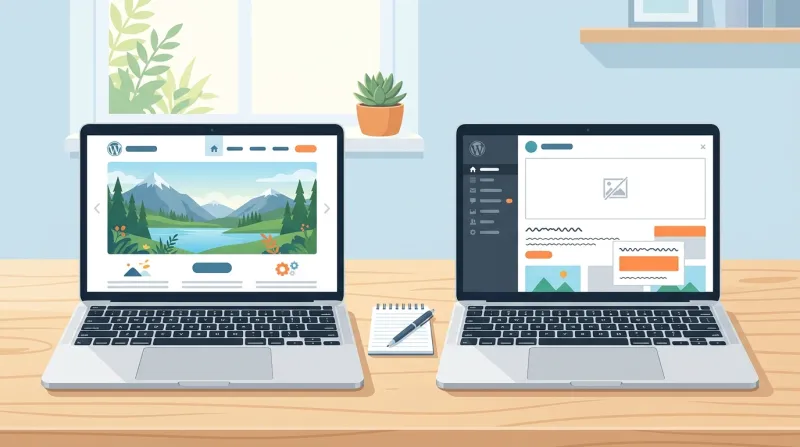
Plugin breakage rarely shows up as one obvious symptom. It shows up as a cluster of behaviors that don't always point to the plugin as the cause. Patterns we see most often:
| Symptom | What you'll see | Most likely cause |
|---|---|---|
| White screen of death | Front-end or admin loads blank, no error visible | PHP fatal error from a plugin, often after an update |
| 500 Internal Server Error | Server returns the error page on every URL | Plugin failure plus a misconfigured error reporting setting |
| Plugin installed but invisible | Plugin shows active in the admin, but the feature it adds isn't there | JavaScript conflict with another plugin or the theme |
| Silent functionality failure | A form submits but nothing arrives, a checkout completes but no order shows up | Hook collision or a recent plugin update that changed the integration point |
| Donation or checkout completes but no payment lands | User sees thank-you page; no order in admin, no money in Stripe | Plugin update changed a payment-hook signature; another plugin's listener silently fails |
| Layout breaks after a save | Front-end formatting falls apart only on edited pages | Page builder plus add-on plugin version mismatch |
| Admin works, front-end doesn't | Logged-in editors see the site fine, logged-out visitors see errors | Caching plugin or CDN serving a broken cached version |
The last one fools people the most. You log in, click through, everything looks right, you tell the client it's fine. Then the client opens an incognito window and sees the broken version everyone else is seeing.
The symptom pattern matters because it shapes the diagnostic path. A WordPress white screen after a plugin update points to a fatal error in the new code. A WordPress 500 error from a plugin points to a fatal error and a misconfigured error reporting setting. A silent failure on a form points to a hook collision. They're not the same investigation.
Why a plugin is not working in WordPress: the five most common root causes
In our experience, almost every plugin failure traces back to one of five root causes, roughly in order of frequency.
WordPress plugin conflict: plugin-vs-plugin
The classic "two plugins don't like each other" story is real, but the way it usually happens isn't a clean pair. It's a page-builder ecosystem with too many moving parts.
If your site runs Divi, Beaver Builder, or Elementor, you almost certainly have add-ons stacked on top of the core builder:
- Third-party libraries shipping extra modules
- Design packs
- Custom-field content integrations
- Animation packs
- Popup builders
The core builder updates on its own schedule. The add-on developers ship on their own. The two don't always agree.
So you'll have Elementor at version X, an animation pack still expecting version X minus one, and a popup builder that was last updated when both were on an older API. Nothing is "broken" the way a single bad plugin is broken. Four to eight moving parts just stopped agreeing on what version they're on.
This is why the standard "deactivate everything, reactivate one at a time" advice you see on every other troubleshooting article doesn't work cleanly here. There's no clean A-plus-B pair to find. The conflict is a state across the stack, and the only useful question is which combination of versions last worked and what has changed since.
Plugin-vs-theme conflicts
Themes can break plugins just as easily as plugins break themes.
The most common version is a theme that overrides a plugin's template files. The plugin updates, the template format changes, and the override is wrong. The plugin still loads, but it renders nothing or renders garbage.
We also see custom themes that hard-code assumptions about plugin APIs the plugin no longer uses. These don't fail loudly. They fail at the seam.
Update breakage
A plugin updates, its dependencies didn't, and something it relied on isn't there anymore. Or the plugin changes a function signature, and another plugin that hooks into it suddenly calls a function that doesn't exist.
The fundraiser story above was an update on a breakage case. The plugin authors didn't ship a bug. They shipped a change. The change wasn't compatible with how the rest of the site was using the plugin's earlier behavior.
This is the category the "I didn't touch anything" complaint comes from. The site owner didn't touch anything. Auto-updates did.
PHP version drift
A lot of WordPress sites are still running PHP 7.4. End-of-life November 2022. Still in the wild in 2026. We see this constantly.
When clients hit this, three things surprise them in order.
"I thought my host handled this." A managed host can move the server's PHP version with a button. They cannot rewrite the code on your site to be compatible. The lever is theirs. The code change is yours.
The work is real. Plugin updates, theme updates, and sometimes refactoring an unmaintained theme. If the theme has no compatible version, you're choosing between refactoring it yourself, buying a license for a maintained commercial theme, or rebuilding on something else.
The cost. None of that is free, and most clients aren't expecting a bill for a "PHP upgrade." They expect it to feel like an iOS update. A real PHP 7.4-to-8.2 upgrade on a 4-year-old site is usually a multi-day project, not a button press.
The wedge under this one is the same as the rest of the article. Your host can move the PHP runtime. They can't ship the code change your site needs to run on it. (For the longer version, see our piece on WordPress PHP version upgrades.)
Server-side limits
Memory limit, max execution time, max upload size, max input vars. A plugin can run fine until traffic grows or a new feature uses more memory than the default allocation.
The plugin doesn't fail on its own. It fails because the server doesn't have the headroom.
This one is often genuinely the host's problem to solve, and most managed hosts will adjust limits when asked. Just don't assume they'll notice on their own.
WordPress plugin troubleshooting: diagnosing which plugin is the culprit
WordPress plugin debugging on a production site is a different problem than on a fresh test install.
The fastest way to figure out which plugin is causing problems on a WordPress site, when admin access still works, is some version of "deactivate everything, reactivate in order." That works fine for a clean two-plugin conflict on a small site. It falls apart on a production site with 30+ plugins and a page builder stack.
A few diagnostics that scale better:
The error log. Every managed host puts the PHP error log somewhere. On Cloudways, it's accessible per-app; on WP Engine and Kinsta, it's in the dashboard. Find it before you have an emergency. A fatal error names the file, and the file usually tells you the plugin.
Browser DevTools console. If the failure is on the front end and the plugin loads JavaScript, the console tells you which script is throwing the error. JavaScript conflicts are often invisible to PHP-level troubleshooting because they happen entirely in the browser.
WP_DEBUG mode. Turn it on in wp-config.php with WP_DEBUG_LOG set so errors write to wp-content/debug.log instead of displaying on the front-end. Catches a lot of "silent" failures. Turn it back off when you're done.
WP-CLI. If you have shell access, wp plugin deactivate <slug> doesn't require the dashboard to be loadable. This is what saves you when the white screen is on the admin itself.
Self-rescue when you can't get into the admin
If a plugin update has locked you out of the admin entirely, you need a way in around it. Three reliable paths:
Disable plugin via FTP (or SFTP). Connect over SFTP, open /wp-content/plugins/, and rename the suspect plugin's folder (for example, bad-plugin to bad-plugin-disabled). WordPress deactivates it on the next load. If you don't know which plugin to rename, rename the whole plugins folder, and you'll be back in the admin with everything off.
Database. Open the wp_options table, find the row where option_name = 'active_plugins', and either clear the value or remove the offending plugin's entry from the serialized array. The right approach when SFTP is slow and you already know what you're doing.
WP-CLI. If you have SSH and WP-CLI, wp plugin deactivate --all gets you back in immediately.
None of these are dangerous if you have a recent backup. Confirm you have one before you start.
What your hosting company will (and won't) fix
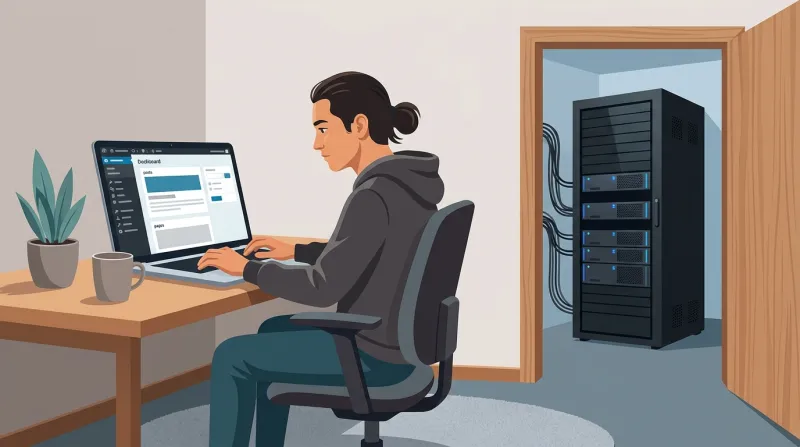
Plugin breakage will eventually happen on any active WordPress site. The real question is who fixes it.
Most premium hosts draw a clean line between "infrastructure" and "the website on top of it." Everything below the line is theirs. Everything above the line is yours, or your developer's, or nobody's.
| Issue | Most premium hosts | FatLab |
|---|---|---|
| Server down or unreachable | Fixed | Fixed |
| SSL certificate expired or misconfigured | Fixed | Fixed |
| PHP version upgrade on the server | Done | Done, plus we ship the code changes the site needs |
| WordPress plugin error after update (fatal, auto-update) | "That's outside our support scope. Contact the plugin developer." | Diagnosed, rolled back, root cause identified |
| Plugin-vs-plugin conflict | "Contact your developer." | Investigated and resolved |
| Page builder broken after a WordPress core update | "Contact your developer." | Resolved |
Custom code in functions.php throwing an error |
"We only support standard installations." | Debugged and fixed |
| WooCommerce checkout failing after a plugin update | "Contact a WooCommerce specialist." | Fixed |
There are three flavors of "we won't fix it." All three end at the same place, but the path is different.
Written in the docs (Kinsta)
Kinsta is the honest case. Kinsta's chat and ticket support is genuinely fast and competent, and we've been a Kinsta agency partner for years.
Their scope-of-support documentation also says it explicitly: "We don't include custom design or programming, which are best left to your developer... You still need a web developer and designer."
Their listed exclusions include theme and plugin functionality changes, code audits, any code editing, fixing issues related to bad themes or plugins, and integrating or fixing external services. We respect them for being upfront about it. (Full breakdown in our FatLab vs Kinsta comparison.)
Spoken on the second support ticket (WP Engine)
WP Engine handles it differently. Their customer service is genuinely good, and they'll take a shot at the issue. We've seen them pull log files on a call, identify error codes, and disable a bad plugin when asked.
But beyond a few minutes of triage, the answer is still "that's a plugin issue, we only support infrastructure, contact the plugin developer." Better effort than most. Same destination. (Longer version in our FatLab vs WP Engine comparison.)
Quietly enforced via plugin blocks (also WP Engine)
The third version skips the refusal entirely by preventing you from installing the plugin in the first place.
WP Engine maintains a plugin blocklist (W3 Total Cache, WP Super Cache, Duplicator, BackWPup, and a long list of others) that can't run on their platform. The arguments for it are performance and security, which are fair. The practical effect is the same as a "we won't fix it" message: you can't run that thing here.
To WPE's credit, the list is public, and they don't pretend otherwise. If you're weighing which model fits your agency, our take on WP Engine vs Kinsta for agencies compares them directly.
Why hosts draw this line
It's a reasonable business decision. Premium hosts run thousands or even millions of WordPress installs, each with a unique combination of plugins and themes. Supporting "your specific stack" at scale is a different business than supporting "the server underneath." You can't price a $35-a-month plan to include open-ended developer time on every customer's site.
When you're the one explaining this to a client
The call we get most often comes after something has already broken, and the agency owner is now looking bad in front of their client.
A lot of these agencies aren't development shops. They're PR firms, brand agencies, marketing consultancies. They built the client's WordPress site, or inherited it, or were asked, "Can you just handle the website too?" and said yes. It mostly worked until a plugin update at 11 PM.
What's going through the agency owner's head:
- The client is on the phone, and to the client, the agency is responsible for the website. The line between the host's responsibility and the agency's isn't a line the client cares about.
- They called the host. The host told them to call a developer.
- The freelancer they sometimes use isn't picking up.
- They're now responsible for fixing something they don't have the in-house ability to fix.
The worst part isn't the broken site. It's being responsible for something you can't fix, while the client is on the phone.
What we do in that moment is straightforward: stabilize the site first, talk about a relationship later. The agency doesn't need a maintenance package pitched at them at 11 PM. They need the site fixed and the client off their back. That's what WordPress emergency support actually looks like in practice.
What WordPress emergency support actually looks like
Going back to the year-end fundraiser story from the top, here's the unglamorous step-by-step.
The trigger. Server monitoring alerted on a memory usage pattern that didn't match the donation site's normal traffic shape. Not a hard failure. Just an unusual curve.
The diagnosis. Our on-call engineer connected and pulled the PHP error log. The plugin name was already there. A donation-related plugin had auto-updated about three hours earlier. The new version was holding memory on requests that should have completed quickly. At 2 AM, that wasn't fatal, but at the next morning's traffic peak, it would have been.
The fix. Roll the plugin back to the previous version. Restart PHP. Watch the memory graph for 30 minutes to confirm the curve has settled. File a note for the morning team to check whether a patched release is available, and, if it is, test on staging before updating.
Time elapsed start to finish: about 40 minutes. Time the client spent on the phone with us: zero.
That's what the fix looks like when somebody is watching, has access, knows the site, and can roll back without filing a ticket with someone else first. If any one of those four conditions is missing, the same incident becomes an emergency at 7 AM instead of a quiet rollback at 2 AM.
The category most agencies don't know exists
The reason "hosting plus WordPress developer support, in one place, included" is rare isn't that nobody thought of it. It's that the support side and the hosting side have very different economics.
Hosting at scale is a margins-on-volume business. Support at the level of "we know your specific site" is the opposite: it's labor-intensive, it doesn't scale linearly, and it gets harder the more sites you take on.
Most companies pick one side. Premium hosts go big on infrastructure and decline to do website-level work. Agencies do website-level work and outsource the hosting. The middle is operationally awkward, which is why most of the market doesn't sit there.
FatLab started as a support company from day one. We added hosting because we realized we couldn't provide the best support possible without controlling the infrastructure. The hosting exists to make the support work. We're not a hosting company that started offering support. We're a support company that built hosting around it.
What that looks like in practice for an agency partner:
- We manage the hosting and monitor the site
- We fix plugin issues and resolve theme conflicts
- We handle PHP upgrades and the code changes that come with them
- We keep the WooCommerce stack working
Think of it as WordPress plugin support as a service, bundled with hosting rather than bolted on as a separate retainer. We work with many agency clients, and over the years, we've worked with dozens. When something breaks on a site we run, the answer is never "contact your developer." We are the developer.
If you're the agency answering the 11 PM client call, the version of this where you have a partner who already has the credentials, knows the stack, and can fix it without escalating is meaningfully different from what most hosts offer. That's the gap WordPress hosting plugin support is meant to close. Our white-label WordPress hosting service is built around exactly that.
Frequently Asked Questions
Why is my WordPress plugin not working after an update?
WordPress plugin updates ship changes, not just fixes. Sometimes the change alters how the plugin interacts with other plugins, your theme, or your PHP version. Auto-updates make this worse because the breakage happens without you knowing the update happened. The most common patterns we see are page-builder add-on mismatches, hook collisions with other plugins, and incompatibility with the site's PHP version.
How do I know if two plugins are conflicting?
The classic test is to deactivate everything, reactivate one plugin at a time, and watch for the failure to reappear. That works for small sites. On a production site with a page builder and 30+ plugins, the conflict often isn't a clean pair but a state across the stack. The better diagnostic compares current plugin and theme versions against the last known-good state.
Can a WordPress theme cause a plugin to stop working?
Yes, and more often than people think. The most common version is a theme that overrides a plugin's template files. When the plugin updates and the template format changes, the override is wrong, and the plugin renders nothing or renders garbage. Custom themes that hard-code assumptions about other plugins are another version of the same problem.
Will deleting a plugin remove my settings?
Most plugins leave their settings in the database when you deactivate or delete them. If you're deleting to troubleshoot, you can almost always reinstall and pick up where you left off. To fully remove a plugin and reclaim database space, use the plugin's documented uninstall process or remove its options manually.
What PHP version should I be running for WordPress?
WordPress core currently recommends PHP 8.1 or higher. PHP 7.4 reached end-of-life in November 2022 and shouldn't be running on any production site, though we still see it constantly. Upgrading PHP is rarely a one-button operation because your plugins and theme also need to be compatible. See our WordPress PHP version upgrade guide for the walkthrough.
Why does my plugin work on some pages but not others?
Usually caching. A caching plugin or CDN cached a working version of the page before the plugin broke, and is still serving that cached version to logged-out visitors. Clear the cache, and the broken version shows up everywhere.
Does managed WordPress hosting fix plugins?
Almost always no, on a typical managed WordPress host. Kinsta explicitly states this in their support documentation. WP Engine will try for a few minutes on a call and then refer you to a developer. Budget hosts that market themselves as "managed" usually mean "managed server," not "managed website." FatLab is the exception by founding intent: plugin issues are included.
What's the difference between hosting support and WordPress support?
Hosting support keeps the server running. WordPress support keeps the site running. Server, network, SSL, PHP runtime, backups, and uptime are hosting support. Plugin conflicts, theme issues, code errors, WooCommerce problems, broken forms, and layout failures are WordPress support issues. Most premium hosts provide the first and decline the second.
Shane Larrabee founded FatLab in 2011 and has spent 25+ years in web development for Fortune 500 companies, federal agencies, and nonprofits. FatLab manages 200+ WordPress sites for small businesses, nonprofits, and many agency clients. If you're evaluating where to put your portfolio next, our take on Kinsta alternatives for agencies in 2026 is the companion piece to this one.