
Your WordPress site isn't working, and you need to determine the cause. Maybe it's a white screen. Maybe it's a cryptic error message. Maybe the whole thing just looks broken.
Before you start Googling error codes or following random tutorials, take a breath. Most WordPress errors have straightforward causes, and the first step to fixing them is understanding what you're actually dealing with.
This guide will help you diagnose the problem, point you to the right fix, and tell you when to stop troubleshooting and call for help.
Start Here: What Are You Seeing?
The fastest path to a fix is identifying exactly what's happening. Find your symptom below:
| What You're Seeing | Likely Cause | What to Do |
|---|---|---|
| Blank white page, no error message | PHP error or plugin conflict | White Screen of Death guide |
| "There has been a critical error on this website" | Plugin or theme fatal error | Critical Error guide |
| "500 Internal Server Error" | Server configuration, .htaccess, or code error | 500 Error guide |
| "Error establishing a database connection" | Database credentials or MySQL server issue | Database Connection guide |
| Browser SSL/security warning | Certificate or cipher mismatch | SSL Error guide |
| "Allowed memory size exhausted" | PHP memory limit exceeded | Memory Exhausted guide |
| Can't log into WordPress admin | Password, security plugin, or redirect issue | Locked Out guide |
| Strange redirects, unknown content, Google warnings | Possible malware infection | Malware Check guide |
| Site broke after clicking "Update" | Plugin, theme, or core update conflict | Update Recovery guide |
| Plugin features stopped working after auto-update | Plugin conflict, theme override, or PHP version mismatch | Plugin Not Working guide |
If you're not sure which error you're dealing with, or you're seeing something not listed here, start by enabling WordPress debug mode to get more information about what's actually failing.
The First Question: What Changed?
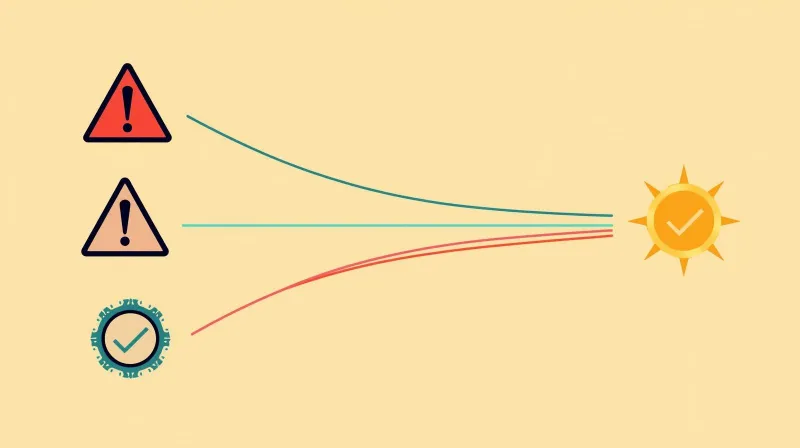
Here's something we tell every client: software doesn't just break.
Between the time your site was working and when it stopped, something changed. Finding that change is usually the fastest path to a fix.
When we troubleshoot WordPress issues for clients, we always start by walking through a brief history. Not to assign blame (nobody wants to admit they broke the website) but to identify what actions were taken recently.
The thing is, this history isn't always obvious to the site manager. Ask "Did you change anything?" and the answer is often "No." But dig a little deeper, asking what happened in the last few days, and suddenly it comes out: "Well, I wanted to add a table to one of my pages, so I installed a table plugin I found online."
That's usually the culprit.
Common Changes That Cause Problems
- Plugin installs: That new plugin you added might conflict with your theme or other plugins
- Plugin or theme updates: Updates can introduce compatibility issues, especially with older themes
- WordPress core updates: Less common, but major version updates can break older plugins
- Content edits: Even something as simple as an unclosed HTML tag can break page layouts
- Hosting changes: Server updates, PHP version changes, or configuration adjustments
We recently had a client whose entire page layout was broken. Massive error. After some digging, we found the cause: they'd used an open bracket in their content that broke the HTML. That's it. Easily fixed once identified, but it created a lot of alarm before we tracked it down.
What We Check First
When a client reports an issue, while we're talking through the history, we're simultaneously checking:
- File modification dates: Has anything in the plugins or themes directory been recently updated?
- Changelog and activity logs: Most sites we manage have logging installed, so we can see who logged in and what they did
- Error logs: What is the server actually reporting?
This gives us a clear picture of what happened, even if the client doesn't remember making changes.
Before You Start Troubleshooting
If you're going to attempt fixes yourself, do these things first:
1. Make Sure You Have a Backup
Before making any changes, confirm you have a recent backup of both your files and database. If you don't have one, create one now. Even a broken site should be backed up before you start troubleshooting. You don't want to make things worse.
2. Know Your Access Points
Depending on the error, you may need:
- WordPress admin access: For plugin/theme management (if you can still log in)
- Hosting control panel: For file management, database access, and PHP settings
- FTP/SFTP access: For direct file access when the admin is unavailable
- Database access: For wp-config.php credentials or direct database queries
If you don't have these credentials on hand, now is the time to find them.
3. Enable Debug Mode
WordPress's default behavior is to hide error details. That's fine for visitors, but it makes troubleshooting harder. Enabling debug mode will show you actual error messages instead of generic "something went wrong" screens.
This often tells you exactly which file or plugin is causing the problem.
Common WordPress Errors: Quick Overview
Here's a brief rundown of the most common issues. Each links to a detailed guide with step-by-step fixes.
White Screen of Death
The WordPress White Screen of Death, a blank white page with no error message, is usually caused by a PHP fatal error or plugin conflict. It's alarming, but typically fixable by identifying the problematic plugin or theme.
Critical Error Message
Since WordPress 5.2, instead of a white screen, you may see "There has been a critical error on this website." WordPress tries to email you a recovery mode link when this happens. Our critical error guide covers how to use recovery mode and fix the underlying issue.
500 Internal Server Error
A 500 error means something failed on the server, but the server isn't telling you what. Common causes include corrupted .htaccess files, PHP memory limits, and plugin conflicts. It's one of the more frustrating errors because it's so vague.
If you're dealing with redirect issues or need to understand how .htaccess works in WordPress, see our complete guide to WordPress .htaccess redirects.
Database Connection Error
"Error establishing a database connection" sounds scary, but it rarely means your data is lost. It usually means WordPress can't reach the MySQL server, often due to incorrect credentials in wp-config.php or a temporarily overloaded database server. See our database connection guide for fixes.
SSL Certificate Errors
Browser warnings about SSL/cipher mismatches are actually server configuration issues, not WordPress problems. They typically involve outdated TLS versions, expired certificates, or CDN conflicts.
Memory Exhausted
"Allowed memory size exhausted" means PHP ran out of memory during execution. This is surprisingly common even on well-resourced servers due to poorly optimized plugins. These themes with heavy database queries or import/export operations try to process too much at once.
Locked Out of Admin
Getting locked out of WordPress admin can happen for several reasons: forgotten passwords, security plugins blocking your IP, two-factor authentication issues, or redirect loops. Multiple recovery methods exist depending on the cause of the lockout.
Malware and Hacks
If you're seeing strange redirects, unknown admin users, content you didn't create, or Google warnings, your site may be compromised. Our malware check guide covers how to confirm an infection and what to do next.
Updates Broke the Site
Clicking "Update" shouldn't break your site, but sometimes it does. Our update recovery guide covers how to roll back safely when an update causes problems, and how to prevent this from happening in the first place.
When the breakage traces specifically to a plugin (a checkout that completes without recording an order, a form that submits to nowhere, a page builder that suddenly renders blank), our guide to plugin not working in WordPress walks through symptom recognition, the five most common root causes, and why most premium hosts won't fix it.
When to Stop and Call for Help
There's a lot of WordPress troubleshooting advice online. Some of it is fine for developers. Some of it is dangerous for non-technical site owners.
Bad Advice We See Constantly
The most common troubleshooting advice is "deactivate all your plugins" or "switch to a default theme." As professionals, we follow similar processes, but we do it on a staging site, not on production.
When a non-technical site owner follows this advice on their live site, their carefully designed website turns into a generic default theme, with none of their features working. That's panic-inducing. And while most functionality comes back when you reactivate things, that's not always the case.
Stop Troubleshooting When...
You're copying and pasting code snippets from the internet. If you don't understand what the code does, don't paste it into your site. This is how small problems become big problems.
You're following instructions you don't understand. If a tutorial is telling you to edit files or run commands and you're not sure what they do, stop.
You're installing more plugins to fix a plugin problem. This rarely ends well.
You're on step 2 or 3, and it's not resolved. Here's our rule: if you know you installed a plugin and something broke, deactivating that plugin is a reasonable first step. But if that doesn't fix it and you're now digging deeper (checking files, editing code, trying multiple things), that's when to call for help.
The further you go down the troubleshooting rabbit hole without knowing what you're doing, the harder it becomes for professionals to help you afterward.
The Case for Professional Support
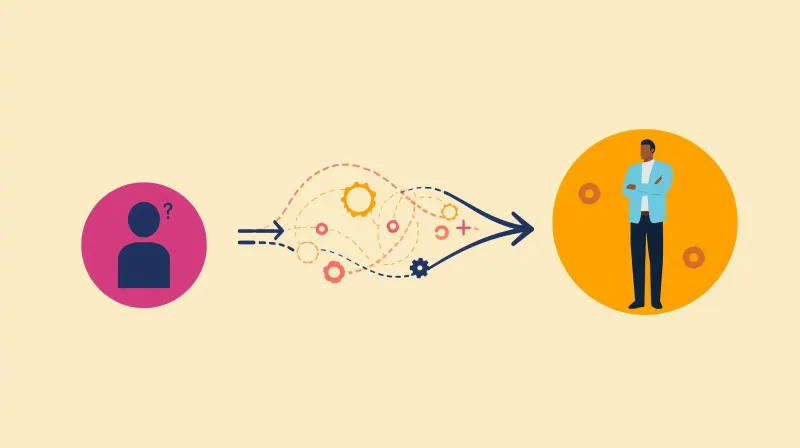
Here's something we wish more site owners understood: as long as you're working within WordPress admin (editing pages, writing posts, managing content), your site should be incredibly hard to break.
The problems happen when non-technical people start acting like developers. When they assume everything can be fixed with another plugin. When they start editing code or following random tutorials.
At the end of the day, WordPress is markup and code running on a server. You can't escape those technical roots with a user-friendly interface.
If Your Site Is Mission Critical
We've had clients come to us with sites that have been down for days. They didn't have a support relationship in place, so when something broke, they scrambled: interviewing support firms, getting proposals, waiting for board approval. All while their site remained broken.
If your organization considers its website mission-critical (for membership, donations, advocacy, sales, whatever it may be), you need to know who to call before something happens.
Not the person in the office who's "good with computers." Not someone who knows WordPress from a content management perspective but has never touched server configuration or debugged PHP.
You need someone who can respond quickly, knows your site, and can actually fix things at the code and server levels.
This doesn't have to be expensive. What it gives you is the ability to contact someone at any time with any issue and know it will be resolved. No running around like a chicken with its head cut off, trying to figure out what to do.
Because something will eventually happen, the question is whether you'll be prepared when it does.
How Managed Hosting Prevents These Issues
Many of the errors in this guide are preventable with proper hosting and maintenance.
Proactive Monitoring
With properly managed WordPress hosting, errors such as the White Screen of Death, 500 errors, and database connection issues trigger immediate alerts. Our team often knows about issues before clients do, and we're already working on fixes.
Safe Update Processes
The "update itch" is real. WordPress constantly shows pending updates, and site owners often click "Update All" right before a big campaign or event, exactly when they can least afford something to break.
Our SafeUpdates process runs updates on a temporary staging environment first, with automated testing and visual regression checks. If anything fails, our team investigates before touching the production site. Updates get applied safely, without the risk of surprise breakage.
And when clients do click to update themselves and something breaks? We can roll back within minutes.
Security Layers
Between enterprise-grade firewalls and server-level malware scanning, properly managed hosting dramatically reduces the likelihood of security issues. Prevention is always easier than cleanup.
Single Point of Accountability
When your hosting, maintenance, and support are all handled by the same team, there's no finger-pointing. No, "that's a hosting issue, contact your host," while your host says, "that's a WordPress issue, contact your developer." When something's wrong, we own fixing it.
Need Help Now?
If you're dealing with a WordPress error and want expert help, contact our support team, we respond quickly, know WordPress inside and out, and won't make you explain your setup from scratch every time.
For ongoing protection, our managed hosting and maintenance plans include proactive monitoring, safe updates, and priority support, so you always know who to call when something goes wrong.