
Here is the uncomfortable truth about WordPress backups: most people do not think about them until they need them. And by then, it is often too late.
Studies suggest that 87% of website owners never test their backups. They assume the backup is there, working, and that they can restore from it if something goes wrong.
These assumptions can be catastrophic.
At FatLab, we have literally restored websites from the Wayback Machine because proper backups did not exist. That is as good as it gets when there is nothing else to work with. And it is a nightmare we have seen too many times.
We manage backups across roughly 50 client sites, and we have reviewed most of these plugins individually. Below is how they compare against each other, which one fits which situation, and the part most comparison articles skip: why having a backup is not the same as being able to restore one.
WordPress Backup Plugins Compared
These are the six plugins we have used and inherited on sites we have taken over.
| Plugin | Free version | Entry price | Where backups are stored | Best for |
|---|---|---|---|---|
| UpdraftPlus | Yes, genuinely usable | $70/year (2 sites) | Your own Dropbox, Drive, or S3 | The best free option |
| BackWPup | Yes, with scheduled backups | $49/year (2 sites) | Your own Dropbox, S3, Azure, or FTP | Restoring when WordPress is down |
| Duplicator | Lite, migration only | $49.50 first year, $99 after (2 sites) | Your own cloud storage | Migration plus backup |
| BackupBuddy | No | $87.50/year (2 sites) | Stash, limited, more costs extra | Existing SolidWP users |
| BlogVault | No, 7-day trial | $149/year (10 GB) | BlogVault's own servers | Managing several sites |
| Jetpack VaultPress | No | $4.95/month intro, $9.95 after | Automattic's servers | Cheapest real-time option |
Prices reflect first-year rates. Nearly every plugin in this category advertises an introductory price and renews higher, so check the renewal rate before you commit. Two exceptions worth noting: UpdraftPlus renews non-Gold plans at a 40% discount, and BackWPup lists the same rate for new and renewing licenses.
UpdraftPlus
Over 3 million active installations, and the only plugin here whose free version is genuinely sufficient for a small site. It supports Dropbox, Google Drive, and Amazon S3 in the free tier, which is unusual.
The limitation that matters: it runs inside WordPress and depends on WordPress cron jobs firing. On budget shared hosting, they often do not. This is the failure mode behind almost every "I had UpdraftPlus installed and the last backup was from two years ago" story we encounter.
BackWPup
Over 500,000 active installations, and the free version is more generous than most people realize: scheduled backups on an hourly, daily, weekly, or monthly cycle, restore functionality, and real off-site destinations including Dropbox, Amazon S3 and S3-compatible storage, Microsoft Azure, FTP, SugarSync, and Rackspace Cloud Files. Paid plans start at $49 per year for two domains, which undercuts UpdraftPlus Premium.
It also has the one feature that speaks directly to the argument this article keeps making. The Pro version includes a standalone restore app that runs outside WordPress, so you can restore a site even when the WordPress admin is unreachable. Every other plugin here needs a working WordPress install to get you out of trouble, which is a problem when the thing that broke is WordPress.
The limitation that matters: Google Drive and OneDrive are Pro-only, so the two cloud services most small organizations already have are exactly the ones the free version cannot reach. Free users get Dropbox and S3 instead. And like every plugin in this tier, the scheduler still runs inside WordPress.
Duplicator
Built as a migration tool first and a backup tool second, and it shows in the interface, which is organized around "packages" rather than schedules.
The limitation that matters: Duplicator Lite has no scheduled backups, no cloud storage, and no recovery points. Unlike UpdraftPlus, the free version is not a backup solution at all. It is a one-time migration utility. You need Pro for anything ongoing.
BackupBuddy
A long-established plugin now part of the SolidWP suite. Reliable, but it occupies an awkward position in the market.
The limitation that matters: there is no free tier at all, and at $87.50 per year it sits above UpdraftPlus Premium ($70) while offering less than BlogVault ($149). It makes the most sense if you already own other SolidWP products.
BlogVault
The most reliable restores we have seen from a non-server-level solution. Backups run on BlogVault's infrastructure rather than yours, so there is no load on your host, and it keeps 90 days of history with incremental backups.
The limitation that matters: despite marketing itself as SaaS, it still requires a WordPress plugin to connect your site. That plugin is subject to the same cron, update, and conflict issues as any other. It is better than a pure plugin, not immune.
Jetpack VaultPress
The cheapest route to real-time backups, running on the same Automattic infrastructure as WordPress.com.
The limitation that matters: no WordPress Multisite support at all, and no third-party storage. Your backups live on Automattic's servers and cannot be redirected to your own Dropbox or S3 bucket. If you run a network, this one is off the table.
Which WordPress Backup Plugin Should You Choose?
If you want the best free option: UpdraftPlus or BackWPup. Both give you scheduled backups and genuine off-site storage without paying. UpdraftPlus wins if you want Google Drive in the free tier. BackWPup wins on price the moment you upgrade, and on what happens when a restore goes badly.
If you want the best odds of restoring a site that is already down: BackWPup Pro, for the standalone restore app. This is the scenario people underestimate until they are in it.
If you are migrating a site and want backups afterward: Duplicator Pro. The migration tooling is genuinely the best here, and you get backups as part of the same license.
If you manage more than a handful of sites: BlogVault. The per-site economics improve, the restores are the most dependable, and centralized management across sites is built in.
If you need real-time backups on a tight budget: Jetpack VaultPress, provided you are not running Multisite.
If you already pay for SolidWP: BackupBuddy, because it is bundled into an ecosystem you own. We would not recommend buying it standalone over the alternatives.
If your host already runs server-level backups: none of them. Adding a backup plugin on top of proper managed hosting adds resource overhead and one more thing to break. More on that below.
Two Purposes of Backups
Before talking about plugins and services, it helps to understand what backups are actually for. They serve two distinct purposes, and each requires a different strategy.
Catastrophic Destruction
This is the scenario most people do not think about: hard drives crash, servers become corrupted, and data centers suffer physical damage from fire or flooding.
These events are rare, but they happen. We have seen it.
Catastrophic protection requires off-site backups stored in a completely different geographic region. If your backup is on the same server as your website, it will be destroyed along with your data in the event of a disaster.
Human Error
This is what clients actually worry about.
Someone lets a junior employee into the WordPress admin area, and they accidentally hit the wrong button. Someone decides to "clean up" old pages and accidentally deletes core functionality. A user does not understand the content management system and removes important data.
Human error is the more common scenario and requires rapid recovery. When someone breaks something at 9 AM, you need the site restored by 9:15 AM, not by tomorrow.
A solid backup strategy addresses both scenarios. You need quick-access backups for recovering from human error and off-site backups for protecting against catastrophic loss.
The Three Tiers of Backup Solutions
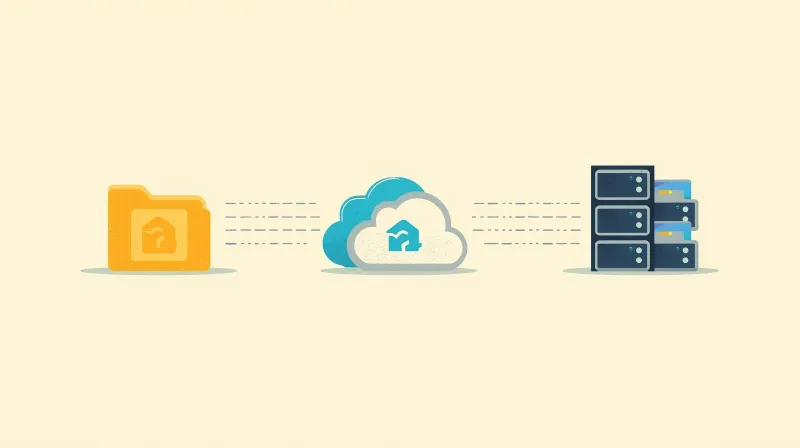
Not all backup solutions are created equal. They fall into three distinct tiers, each with different reliability characteristics. Understanding the critical difference between plugin and server-level backups helps you choose the right approach.
Tier 1: WordPress Backup Plugins
Plugins like UpdraftPlus, BackWPup, BackupBuddy, and Duplicator run inside WordPress. They create backup archives of your database and files and, optionally, push them to cloud storage such as Dropbox or Google Drive.
The appeal is obvious: they are affordable, often free, and give you control over where your backups are stored.
The problem is that they run inside WordPress.
That means they depend on WordPress cron jobs actually running, which does not always happen. They can break when WordPress updates. They can conflict with other plugins or themes.
Unless you manually configure cloud storage, backups often default to the same server as your website. That provides zero catastrophic protection.
We have seen plenty of sites where someone installed UpdraftPlus, thought they were protected, and later discovered the last successful backup was from two years ago.
Tier 2: SaaS Backup Services
Services like BlogVault and Jetpack VaultPress Backup improve on plugins by automatically handling cloud storage. Backups run on their servers and are stored on their infrastructure, which simplifies the process considerably.
BlogVault stores backups on their own encrypted servers with 90 days of backup history, and their backups run externally, so there is no load on your hosting server.
Jetpack VaultPress stores backups on the same Automattic infrastructure that powers WordPress.com, with real-time backups included on all plans.
If you are doing cloud storage versus local storage, you are way ahead of the game. That is the major advantage of these services.
But here is what most people do not realize: even SaaS backup services still rely on a WordPress plugin to connect to your site.
That plugin is still susceptible to cron jobs not running, update issues, plugin conflicts, and theme conflicts.
They are better than straight plugins, but they still have a fault that truly server-based solutions cover.
Tier 3: Server-Level Backups
This is what we use at FatLab and what quality-managed hosts like Kinsta, WP Engine, and Pantheon provide. Backups run at the infrastructure level, completely independent of WordPress.
You do not have to do anything. The backups just run.
Engineers monitor them and get alerts if anything fails. They fix problems before you even know there is an issue.
This is the gold standard because there is no plugin dependency. No cron jobs to fail. No authentication tokens to expire. No configurations to break during updates.
The less you pay for managed hosting, the more backup responsibility you take on yourself. That is the fundamental trade-off.
FatLab's Backup Infrastructure
At FatLab, our backups are server-based, automatic, and non-negotiable. Regardless of what plugins, themes, or configurations a client has installed, we maintain backups.
We keep 30 days of backups: both files and daily database snapshots. For critical applications where data changes frequently, we can do hourly snapshots.
Our two-tier approach maps to the two purposes of backups:
On-server backup for recovering from human error. This is the most recent backup, stored on the server with the website. We can restore a site from this in about 10 minutes. Fast recovery for when someone breaks something.
Off-site cloud backup for catastrophic protection. Thirty days of backups are stored in a completely different geographic region. Restores in about an hour and protects against physical damage, hardware failure, and data center disasters.
We do not rely on plugins.
Plugins freeze. Cron jobs do not run. Updates break things. Third-party connections to services like Dropbox or Google Drive can break or become unauthorized, and you might not notice the problem until you need to restore your data.
When a client migrates to FatLab, we actually remove their backup plugins unless they specifically want to keep them. Our systems are more reliable, and the plugins just take up space and resources at that point.
When a WordPress Backup Plugin Makes Sense
If you are not on a managed hosting system that provides automatic backups, then a plugin makes sense for you.
But let us be clear about what that means.
If you are on a budget host like GoDaddy, Bluehost, HostGator, or similar providers, you get what you pay for.
On a five-dollar-a-month plan, you cannot expect much in the way of quality service. And because backups are sometimes treated as an add-on service, you cannot rely on these cheap services to provide solid, redundant, off-site backups.
Even if budget hosts tell you they have backups, even if you turn them on yourself, even if you configure them, even if they say they are cloud-backed and redundant: do not trust them.
We have seen it too many times.
Users become confused during the setup process, and the configuration is not set up correctly. Or people mistake marketing language for something it does not mean.
Here is a common trap: hosting companies maintain backups, but that does not mean you can access them.
Those backups are for the hosting company, in case their data center experiences a catastrophic event. They are backing up server images, not your individual website. This is incredibly confusing marketing language.
Whichever plugin you choose from the comparison above, the same rule applies: you have taken on the responsibility of maintaining it. You need to make sure cloud connections are still working, that authentication tokens have not expired, and that backups are actually running.
The "Having Backups" vs "Being Able to Restore" Problem

The most dangerous WordPress backup problem is not failed backups that trigger error notifications. It is successful backups that silently create unusable restore files.
This is the part the comparison tables cannot tell you. Every plugin above will report a successful backup. None of them can tell you whether that backup will restore.
Until you have tested a restore, you do not actually know if your backups work. See our guide on WordPress disaster recovery for real scenarios of what happens when backup systems fail.
Common Failure Scenarios
The assumption problem. People assume backups are automatic when they are not. Some hosting plans require you to enable backups manually. Some count backup storage against your quota. Some charge extra.
The biggest problem we see is people who assume they have backups and are blown away when they do not.
Corrupt backups. Sometimes something goes wrong at the host level. They are backing up corrupt files that cannot be reinstated. You do not discover this until you try to restore.
Authentication expiration. This is particularly common with Google Drive.
Your authentication expires. You see a notice in WordPress that needs attention, but you skip it, thinking backups are in place. But they are not, because the authentication token expired.
Misconfigured plugins. Due to incorrect settings, the plugin is backing up the wrong folder, or only partial data. We have seen all of these scenarios.
How to Actually Test Your Backups
Testing does not have to be complicated. At minimum:
- Download the backup zip file
- Unzip it
- Verify you see a SQL file and all the files that belong to your site
- Check that the file size makes sense
If your site is several hundred megabytes, the backup should not be just a few megabytes of random system files.
For more thorough testing, stand up the backup on a staging server and verify that everything works. It depends on your technical ability and the importance of the information on your site.
The point is: do something. Check your backups. Make it part of your regular maintenance routine.
The worst time to discover your backups do not work is when you desperately need them.
Two Stories: Disaster vs Success
The contrast between having backups and not having backups is stark. Here are two real scenarios from our experience.
The Drupal Disaster
Years ago, we worked on a legacy Drupal site displaying products. The site had a ghost-in-the-machine problem: products kept disappearing randomly.
We would think everything was working, and then the client would call, saying the products had vanished again.
We suspected database corruption because standard database operations were failing. Tables would not migrate or export properly. The database was essentially unusable for migration, likely because it was running on an outdated database server that the client was unaware of.
And there were no backups.
The site had been running for years without problems, so nobody thought about backups until a catastrophic issue occurred.
We ended up migrating the tables we could salvage and using the Internet Archive's Wayback Machine to reconstruct the rest.
Something that should have taken an hour took weeks.
We kept going back and forth with the client about what should and should not be on the site, because the Wayback Machine is not perfectly accurate.
It was an absolute disaster, all because backups did not exist.
The Real Estate Recovery
In late 2025, we got a panicked call from a large real estate company specializing in condominiums.
Their website had complex third-party integrations for floor plans, rental inventory, and tour reservations. These integrations were built as special templates that appeared "empty" in the WordPress admin but still contained critical functionality.
Someone at the company decided to clean up the website and deleted all these "empty" pages.
When they realized the core functionality was gone, they tried to fix it by recreating pages, but they did not understand the site structure. They created pages in the wrong locations, breaking the site's navigation.
By morning, they finally called us, embarrassed about the mess they had created.
Our answer: "Would you like us to roll back a backup? We can restore a backup from before you made your changes."
Five minutes later, the site was up and running exactly as it was before.
The client admitted she wished she had called us immediately instead of trying to fix it herself. She kept thinking "one more thing" would fix it.
That is human nature. But with proper backups in place, a multi-day disaster became a five-minute recovery.
Red Flags We See When Taking Over Sites
When we take over maintenance of a site, certain backup-related red flags appear repeatedly.
Backups off or frozen. We cannot count how many sites we have taken over from budget hosts that simply do not have backups running.
We go into the control panel and find that backups are off, or that there is an UpdraftPlus plugin with a backup from two years ago.
Multiple backup plugins. This happens when organizations have multiple administrators who do not communicate with each other.
Two different people thought backups were their responsibility and configured them completely differently. This is not just redundancy; it signals that no one actually knows what the organization has.
There is no data strategy, and that is a massive red flag.
Authentication warnings ignored. We log in and see notices such as "Google authentication needs renewal" or "Dropbox connection lost."
Someone did the right thing at one point, but the system stopped working, and nobody noticed.
"I'm not sure what we have." This is honestly the most common scenario.
During sales calls, we mention backups, and the client says, "Oh yeah, we probably need those too. I'm not sure what we have."
They just assumed backups came with their hosting.
As we explain our backup strategy and philosophy, clients often realize for the first time that backups require deliberate planning. It is not as automatic as they thought.
Real-Time Backups: When They Matter and When They Do Not
Some backup solutions market "real-time backups" where every change gets saved instantly. BlogVault offers this for WooCommerce sites. Jetpack VaultPress includes real-time backups on all plans.
This sounds impressive, but for most sites, it is overkill.
When Real-Time Actually Matters
Real-time backups are critical if the website is your source of truth for data you cannot afford to lose.
Consider a busy WooCommerce store getting orders every hour or every minute.
If something happens and you need to restore from the midnight backup, you lose all orders placed since midnight. That means matching payment gateway transactions to customers, contacting customers to ask what they ordered, and recreating orders manually.
It can be an absolute disaster.
For high-transaction sites where the website is the sole record, real-time protection makes sense.
When Real-Time Is Overkill
For a WooCommerce store getting a couple of orders a week or a couple of orders a day, real-time backups might not be worth the hassle.
For brochure websites that update occasionally, daily backups are more than sufficient.
Here is something the marketing does not mention: real-time backups create a lot of backups.
With daily backups, you have 30 to look through when trying to find when something went wrong. With real-time backups, you have potentially thousands.
If you do not have sophisticated systems to cherry-pick changes and pinpoint exactly when data went bad, all those backups become a headache.
"Real-time backups mean you never lose anything," sounds great, but try putting that back together when you need to restore. It becomes a massive coordination problem.
The Data Strategy Alternative
If you feel you need real-time backups, you probably need a comprehensive data strategy.
We worked with a political donations organization that collected contributions in compliance with FEC requirements. We used to do hourly backups for them.
Today, we architected a better solution: donations are stored in a third-party system via an API, and the website interfaces with that system rather than serving as the source of truth.
Now, if we need to restore from a backup, we are restoring only the website's database and files. The critical financial records live elsewhere.
This approach transforms the question from "how frequently do we back up?" to "where does critical data actually live?"
For most organizations, daily backups are sufficient. The sites that genuinely need real-time protection are rarer than the marketing suggests.
Considerations for Associations and Nonprofits
FatLab works with many associations and nonprofits, and backup criticality varies based on one key question: Is the website the source of truth for your data?
Website as Source of Truth
Some organizations use WordPress as their de facto CRM or association management system.
Plugins like WP Membership Pro store all member data, donation records, and event RSVPs directly in WordPress.
For these organizations, the website database contains the only up-to-date record of critical information. Backups are essential because losing that data means losing your membership rolls, donation history, and event registrations.
Website as Interface
Other organizations handle membership, donations, and events through third-party providers.
The WordPress site connects to these systems through plugins, widgets, or API integrations, but the actual data lives elsewhere.
For these organizations, backup strategy changes. The website is important, but it is not the single point of failure. Critical records are protected by the backup systems maintained by the third-party providers.
The key question for associations: where does your critical data actually live?
If it is only in WordPress, your backup strategy must be bulletproof.
What to Look For in a Backup Strategy
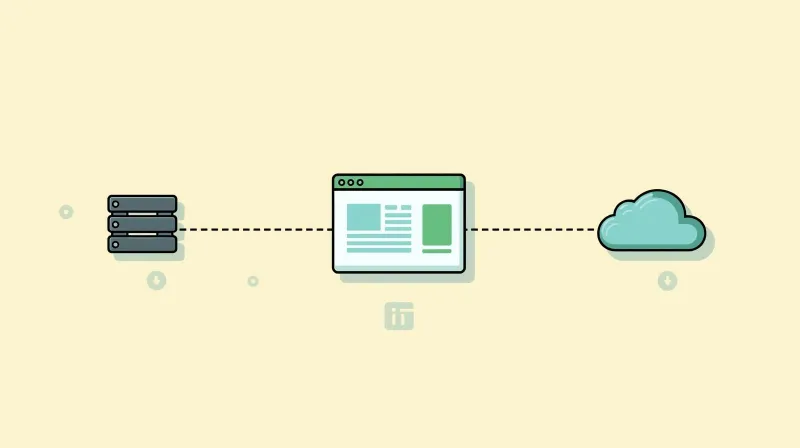
Whether you are evaluating hosting providers, choosing a WordPress backup solution, or auditing your current setup, here is what matters.
Minimum Requirements
Frequency: Weekly backups at the absolute bare minimum. Daily is our minimum standard at FatLab.
Retention: At least 30 days of daily backups. Problems are not always discovered immediately. You need the ability to go back far enough to find clean data.
Off-site storage: Backups stored on the same server as your website do not protect against catastrophic events. You need backups in a completely different location.
Tested restores: At some point, someone needs to verify that backups actually work. This is non-negotiable.
What Managed Hosting Should Include
If you are paying for managed WordPress hosting, backups should be automatic, off-site, monitored by engineers, and included in your plan without per-site fees.
Do not trust marketing language that just says "backups." Verify specifically:
- Are backups automatic, or do you have to enable them?
- Are they stored off-site or on the same server?
- What is the retention period?
- Can you actually access and restore them, or are they only for the host's disaster recovery?
Go with a managed host that explicitly promises at least 30 days of daily backups, handles everything automatically, and provides real support when you need to restore.
If You Use Plugins or SaaS
If budget constraints mean you are using a backup plugin or service, accept that maintenance becomes your responsibility.
Make checking your backups part of your routine.
When you log in to update plugins, verify your backup system is still running. Check that authentication tokens have not expired. Occasionally, download a backup and verify that it opens correctly.
The less you pay for managed solutions, the more responsibility you take on. There is no way around this trade-off.
Frequently Asked Questions
What is the best WordPress backup plugin?
For most people it is UpdraftPlus or BackWPup, because both have free versions that actually work and both support real off-site storage without paying. UpdraftPlus includes Google Drive for free; BackWPup is cheaper to upgrade and its Pro standalone restore app can rescue a site whose WordPress admin is unreachable. If you manage several sites and want the most dependable restores, BlogVault is worth the higher price. If your host already runs server-level backups, the best backup plugin is none of them.
Is the free version of a backup plugin good enough?
It depends which one. UpdraftPlus and BackWPup both offer genuinely usable free tiers with scheduled backups, off-site cloud storage, and restore functionality. Duplicator Lite does not: it has no scheduled backups and no cloud storage, so it works as a migration tool rather than a backup solution. BlogVault, BackupBuddy, and Jetpack VaultPress have no free tier at all.
How often should I back up my WordPress site?
Daily is our minimum standard, with at least 30 days of retention. Weekly is the absolute floor and we would not recommend it. Real-time backups only make sense when your website is the sole record of data you cannot recreate, such as a high-volume store or a donation system.
Do I still need a backup plugin if my host does backups?
Usually not, and often you are better off without one. If your host runs genuine server-level backups that you can access and restore yourself, a plugin adds resource overhead and another dependency that can fail. The catch is verifying that the host's backups are actually yours to restore, rather than server images kept for the host's own disaster recovery.
Where should WordPress backups be stored?
Somewhere other than the server running your website. A backup stored alongside your site offers no protection against hardware failure or a data center incident. The strongest setup keeps a recent copy nearby for fast recovery from human error, plus an off-site copy in a different geographic region for catastrophic protection.
How do I know if my backup actually works?
Download the backup file, unzip it, and confirm you see a SQL file plus your site's files at a plausible total size. That catches most corrupt backups in a couple of minutes. For a real test, restore it onto a staging site and click through. Roughly 87% of site owners never do this, which is why so many discover the problem at the worst possible moment.
Choosing the Best WordPress Backup Solution
Backups are both a maintenance task and a security measure. For step-by-step implementation guidance, see our complete guide on how to back up WordPress.
They protect against catastrophic events like hardware failure and data center disasters. They also protect against hacks and malware; rolling back a website after an exploit and patching that version is often faster and cheaper than a full cleanup.
If there is absolutely anything on your website that would be catastrophic for your business or association to lose, you need backups.
Even if all that means is: if something happened to your website, it would be a real pain and take a lot of time to recreate. That is enough reason to have backups.
The biggest problem with backups is that you do not think about them until you need them. And unless you gave them proper care beforehand, it might be too late.
Do not be part of the 87% who never test their restores.
Do not assume your hosting provider has you covered without verifying.
Do not let authentication tokens expire unnoticed.
Backups are mandatory. Tested backups are what actually protect you.
If you need help implementing a reliable backup strategy or want to stop worrying about backups entirely, explore our website maintenance services.