Figuring out how to clone a website becomes surprisingly complicated when you don't have the server credentials you need. Maybe the previous developer disappeared, or the hosting account is under someone else's name, or the former host just isn't being cooperative. Whatever the reason, you're stuck trying to copy a site without the standard access most tutorials assume you have.
At FatLab, we handle these exact situations regularly. Over the past 14 years, managing 200+ WordPress websites, we've migrated sites from hostile hosts, recovered sites from developers who vanished, and rescued countless organizations from access nightmares. This guide covers what we've learned, both the DIY methods that work and when it makes sense to hand the job to professionals.
Why You Might Need to Clone a Website Without Full Access
Before diving into methods, it helps to understand the common scenarios. Knowing the situation will determine which approach works best.
The Previous Developer Disappeared
This is the most common situation we encounter. A freelancer or agency set up the hosting years ago, tied everything to their accounts, and is now unreachable. Maybe they changed careers, moved overseas, or simply stopped responding to emails. The website works fine, but no one has access to the server.
Credentials Were Never Documented
Employees leave. Agencies change. And somewhere along the way, the FTP credentials, database passwords, and hosting login details got lost. The site runs, but nobody knows how to access anything beyond the WordPress dashboard, if that.
The Host or Developer Won't Cooperate
We see this more often than we'd like. Sometimes it's a legitimate dispute over unpaid bills (in which case, settle up first). But sometimes the previous provider is simply being difficult, holding the site hostage, or ignoring migration requests entirely.
If you're dealing with unpaid bills, resolve those before attempting migration. We always advise clients to settle outstanding debts rather than trying to work around them. However, if access is being withheld for no legitimate reason, the methods below can help you move forward.
The Hosting Control Panel Doesn't Exist (Or You Can't Access It)
Some hosting setups, particularly custom VPS configurations or legacy environments, don't have cPanel, Plesk, or any standard control panel. Even if they do, you might not have login credentials for it. Without these tools, traditional backup and migration methods won't work.
What Access Do You Actually Have?
The method you use depends entirely on your current access. Here's how to assess your situation:
Full server access (FTP/SFTP, database, control panel): You don't need this guide. Use standard migration methods or ask your new host to handle it.
WordPress admin access only: This is the sweet spot for the methods below. You can install plugins and work through the WordPress dashboard.
Frontend access only (no admin login): Your options are limited to static copying tools, which won't preserve dynamic functionality.
No access whatsoever: This isn't migration; it's recovery. You'll need to work with your domain registrar, hosting provider, or potentially legal channels to regain access.
For the rest of this guide, we'll assume you have WordPress administrator access but lack FTP, database, or control panel credentials.
Method 1: Use a WordPress Backup Plugin
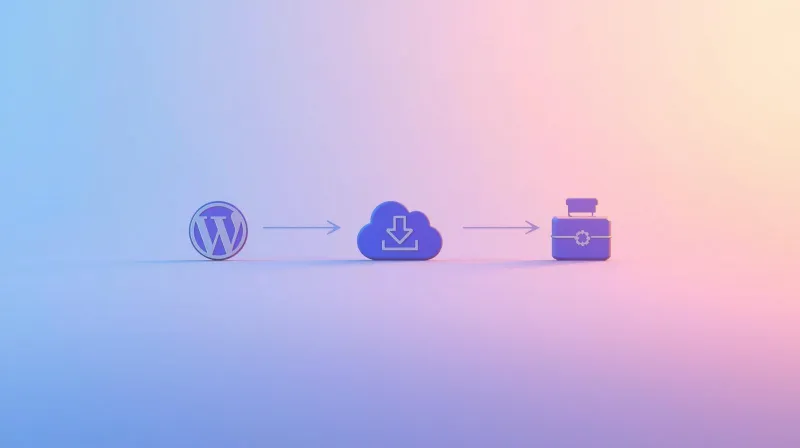
Backup plugins work entirely through the WordPress dashboard, creating complete copies of your files and database without needing server-level access.
How Backup Plugins Work
These plugins package your entire site (themes, plugins, uploads, and database) into downloadable files. You then restore these files on your new hosting environment to recreate the site.
The catch: the server must have enough resources (memory, storage, execution time) to complete the backup. Large sites on underpowered hosting sometimes struggle with this approach.
Recommended Backup Plugins
BackWPup. Our long-time favorite for this specific scenario. The free version supports both files and databases, multiple storage destinations (local download, Dropbox, Amazon S3, Google Drive), and works reliably across most hosting environments. The output is a standard zip file plus SQL database export, in universal formats any host can work with.
UpdraftPlus. The most popular backup plugin with over 3 million active installations. Excellent interface, reliable performance, and strong cloud storage integration. The free version handles most migration needs.
Duplicator. Takes a different approach by creating an installer package. When it works, it's incredibly convenient: you upload the package to your new host and run the installer. However, we find that it conflicts with more hosting configurations than BackWPup does.
Tips for Successful Backups
If your first backup attempt fails, try these adjustments:
- Exclude unnecessary files: Skip other backup archives, log files, and cache directories to reduce package size.
- Toggle compression: Some servers handle compressed archives better; others prefer uncompressed. Try both if one fails.
- Increase PHP limits: If you can access wp-config.php, try adding
define('WP_MEMORY_LIMIT', '256M');to give the backup plugin more memory. - Try during off-peak hours: Less server load means more resources available for your backup.
- Use cloud storage: Sending the backup directly to Dropbox or Google Drive sometimes works when local downloads timeout.
Method 2: Use a WordPress Migration Plugin
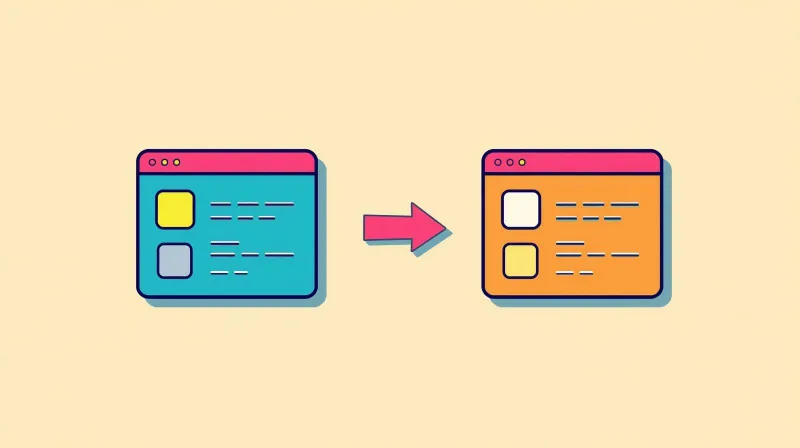
Migration plugins are more sophisticated than backup plugins. Instead of creating a package you manually move, they connect two WordPress installations and transfer content directly between them.
How Migration Plugins Work
You install the plugin on both your existing site (the source) and a fresh WordPress installation on your new hosting (the destination). The plugin then pulls content from the source to the destination, handling database URL replacements and fixing serialized data that breaks manual migrations.
This approach requires your new hosting to be set up with a working WordPress installation first.
Recommended Migration Plugins
WP Migrate. Our preferred tool for professional migrations. We use it daily to sync databases between development, staging, and production environments. The pro version handles complete site transfers, including media files. Note: WP Engine acquired this plugin in 2022. It still works well, but we're watching its development trajectory.
All-in-One WP Migration. Extremely popular with over 5 million installations and excellent reviews. Handles most migrations smoothly. The free version has a file size limit on imports, but extensions are available for larger sites.
Managing Large Sites
Large sites (lots of media, extensive databases) can overwhelm migration plugins. If you're dealing with a substantial site:
- Adjust chunk sizes and transfer intervals in plugin settings
- Migrate during low-traffic periods
- Consider migrating the database first, then transferring media files separately via the WordPress dashboard
- For very large sites (10GB+), professional migration services become much more practical
When Migration Plugins Struggle
We've seen migration plugins timeout, crash servers, and occasionally corrupt data. This typically happens with:
- Very large sites (thousands of posts, massive media libraries)
- Underpowered source hosting with limited resources
- Complex multisite networks
- Sites with unusual plugin configurations or custom database tables
If you attempt a plugin-based migration and it fails repeatedly, that's a strong signal that professional help will save you time and frustration.
Method 3: Static Site Copy (Limited Use)
If you truly have no backend access, not even WordPress admin, you can create a static copy of the site's frontend using tools like HTTrack or wget. This preserves the visual appearance and content but loses all dynamic functionality: forms won't work, search won't function, and you won't be able to edit content through WordPress.
This approach is really only useful for archival purposes or as a temporary placeholder while you sort out proper access. It's not a real migration solution for a functioning website.
When DIY Migration Isn't Worth the Risk
The methods above work well for straightforward sites. But some situations genuinely call for professional help:
You've already tried and failed. If backup plugins repeatedly timeout or migration attempts keep failing, the site likely has characteristics that require hands-on troubleshooting. Continuing to retry wastes time and risks data corruption.
The site processes transactions or handles sensitive data. E-commerce stores, membership sites, and anything involving user accounts or payment information deserve extra care. A botched migration can mean lost orders, broken subscriptions, or security vulnerabilities.
You're on a tight deadline. DIY migrations often take multiple attempts. If the site needs to move this week and you're not experienced with this process, the risk of delays is high.
The site has complex functionality. Custom plugins, unusual integrations, multisite networks, or heavy customizations add variables that can break during migration. Professional teams know how to test for and resolve these issues.
Your time is more valuable elsewhere. Even successful DIY migrations take hours of focused attention. If your hourly rate exceeds the cost of professional migration, outsourcing makes economic sense.
How FatLab Handles Difficult Migrations
When clients come to us with access-limited migration needs, we've already seen their situation dozens of times. Our process removes the stress entirely:
We work with whatever access you have. Whether it's just WordPress admin credentials or a complex partial-access setup, we've developed techniques for virtually every scenario.
Staging and testing before going live. We migrate to a staging environment first, thoroughly testing everything before touching DNS. You review and approve before your visitors see anything different.
Zero-downtime DNS transitions. Our migration process keeps your site live throughout. Visitors never see a broken page or maintenance screen.
Free migration with FatLab hosting. When you host with us, migration is included at no additional cost, whether you're moving one site or fifty. We've migrated entire agency portfolios (50+ sites) without a single minute of downtime.
We handle the technical complexity. Database serialization, URL replacements, SSL certificate configuration, DNS propagation: these details trip up DIY migrations constantly. We manage all of it.
If you're evaluating hosting options and dreading the migration process, our stress-free WordPress migration service covers exactly how we make this painless. And if you want to understand what quality managed hosting actually includes, our guide to choosing managed WordPress hosting breaks down what separates enterprise-grade infrastructure from commodity hosting. For a deeper dive into managed vs. DIY hosting, see our comprehensive guide: What Is Managed Web Hosting? How It Differs from DIY WordPress Hosting.
After the Migration: What Comes Next
Successfully moving a site is just the first step. Post-migration, make sure to:
- Test everything thoroughly: Forms, checkout flows, login systems, internal links, media display, plugin functionality.
- Check SSL configuration: Ensure HTTPS works correctly and no mixed-content warnings appear.
- Verify email functionality: Contact forms and notification emails often break during migrations.
- Update DNS records: Point your domain to the new host once testing confirms everything works.
- Wait before canceling old hosting: Keep the original host active for a few days after DNS propagation, just in case issues surface.
- Update any hardcoded URLs: Some themes and plugins store absolute URLs that need updating.
Frequently Asked Questions
How do I clone a website without access to the server?
If you have WordPress administrator access, you can clone a website using backup or migration plugins that work entirely through the WordPress dashboard. Plugins like BackWPup, UpdraftPlus, or All-in-One WP Migration create complete site copies without requiring FTP or database credentials. Install the plugin, generate a backup, download the files, and restore them on your new hosting environment.
Can I copy a website without any access?
Without any backend access, you can only create a static copy of the visible pages using tools like HTTrack. This preserves the appearance but loses all dynamic functionality: no working forms, no content management, no database. For a functional copy, you need at least WordPress admin access to install migration plugins.
What's the difference between cloning and migrating a website?
Cloning creates an exact copy of a website, typically for development, staging, or backup purposes. Migration moves a website from one hosting environment to another, usually involving DNS changes so visitors reach the new location. The technical process is similar, as both involve copying files and databases, but migration includes the additional step of redirecting traffic.
Which backup plugin works best for sites without FTP access?
BackWPup consistently performs well in access-limited scenarios because it handles both files and databases, works within PHP memory limits, and exports to universal formats any host can restore. UpdraftPlus is equally reliable with a more polished interface. Duplicator works well when it works, but tends to have more compatibility issues with unusual hosting configurations.
How long does it take to migrate a WordPress site?
Simple sites with standard plugins and moderate content typically migrate within a few hours. Complex sites with large media libraries, custom functionality, or multisite configurations may take 24-48 hours. When FatLab handles migrations, we complete most within 24 hours of receiving access, with rush options available for urgent situations.
Will cloning a website hurt my SEO rankings?
Cloning itself doesn't affect SEO because search engines only see your public domain. However, migration mistakes can hurt rankings: broken redirects, changed URLs, duplicate content from having both sites live, or downtime during transition. Proper migration processes, including staging, testing, and correct redirect implementation, preserve your search rankings.
What if my migration plugin keeps failing or timing out?
Repeated failures usually indicate that the site exceeds the plugin's capacity on that server. Try reducing the scope (e.g., exclude caches and logs), increasing PHP memory limits, or switching to a plugin with adjustable chunk sizes, like WP Migrate. If failures persist, the source hosting likely lacks the resources needed, and professional migration becomes the practical option.
Can I migrate a WordPress multisite network without server access?
Yes, but it's significantly more complex. Plugins like WP Migrate handle multisite migrations, but the database relationships between network sites require careful handling. Each subsite's uploads, tables, and configurations need to be properly mapped to the new environment. This is one scenario where professional migration often saves substantial time and prevents data loss.
How do I migrate a WordPress site without plugins?
Without plugins, you need FTP and database access to export files and SQL manually, then import them to your new server. If you lack this access, plugins are essentially your only option for a complete migration. The alternative, static copying, doesn't preserve WordPress functionality.
Should I hire a professional for website migration?
Consider professional migration if: your DIY attempts have failed, the site handles payments or sensitive user data, you're under a tight deadline, the site has complex custom functionality, or your time is better spent elsewhere. For straightforward sites with patient timelines, DIY migration works fine. For mission-critical or complex work, professional migration eliminates risk.
How do I clone a WordPress site without admin access?
Without WordPress admin access, your options are extremely limited. You cannot install the backup or migration plugins needed for a complete copy. Your alternatives are: request admin credentials from whoever controls the site, contact the hosting provider directly to prove ownership, use a static site copier like HTTrack to capture the frontend only (losing all dynamic functionality), or pursue legal remedies if access is being wrongfully withheld. For a functional WordPress clone, admin access is essentially required.
Can I copy a WordPress site without admin access?
Copying a WordPress site without admin access isn't possible with standard methods because you can't install the required plugins. If you only have subscriber or editor access, you cannot export the database or create full backups. You'll need to escalate to administrator access, work with the hosting provider, or accept a static-only copy that won't include WordPress functionality.
How do I clone a WordPress site manually without plugins?
Manual WordPress cloning requires FTP/SFTP access to download all files and phpMyAdmin or command-line access to export the database. You then upload the files to your new server, import the database, and update wp-config.php with new database credentials. The challenge: if you had this level of access, you wouldn't need the workarounds in this guide. Manual methods require more server access than plugin-based methods, not less.
Can I backup a WordPress site without using plugins?
Yes, but only if you have server-level access. Through cPanel, you can use the backup wizard or file manager to download files and phpMyAdmin to export your database. Via SSH, you can use command-line tools like mysqldump and zip. However, suppose you're reading this guide because you lack server access. In that case, plugins are your only practical option. They're specifically designed to work through the WordPress dashboard when server access isn't available.
What's the difference between cloning and copying a website?
In practical terms, cloning and copying a website mean the same thing: creating a duplicate of an existing site. "Cloning" typically means creating a replica for development or staging, whereas "copying" often refers to transferring content to a new location. Both processes involve duplicating files and databases. The methods described in this guide work for either purpose.