Web Hosting Resources
Everything you need to know about managing your WordPress website with FatLab Web Support.
DNS Records
Understanding DNS Records
Watch this video to learn what DNS records are and why we need access to them to properly configure your website hosting.

Website Records
All instructions are for the base/apex domain and are in {host} -> {value} format.
We use Cloudflare Enterprise as our Firewall and CDN. Please update your DNS records as specified below to direct your site's traffic through Cloudflare, ensuring enhanced security and performance.
A Records
@ -> 162.159.137.54
@ -> 162.159.136.54
CNAME Records
www -> secure.cloudways.cloud
Please ensure these are the only A and CNAME records for @ and www.
TXT Record
Some domains require us to create an additional text record to verify domain ownership. We will notify you if this is the case, as each TXT record is unique.
Email Records
All instructions are for the base/apex domain and are in {host} -> {value} format.
To authorize emails sent from our servers on your behalf and ensure optimal deliverability, please configure the DNS records listed below. We utilize ElasticMail as our transactional email service.
SPF (TXT)
An SPF record is listed as a TXT record type in most DNS services.
If your domain already has an SPF record, add include:_spf.elasticemail.com to the end of your existing record, ensuring that the line ends with ~all.
If your domain does not yet have an SPF record, create a TXT record with the following value: v=spf1 include:_spf.elasticemail.com ~all.
DKIM (TXT)
A DKIM record is listed as a TXT record type in most DNS services.
k=rsa;t=s;p=MIGfMA0GCSqGSIb3DQEBAQUAA4GNADCBiQKBgQCbmGbQMzYeMvxwtNQoXN0waGYaciuKx8mtMh5czguT4EZlJXuCt6V+l56mmt3t68FEX5JJ0q4ijG71BGoFRkl87uJi7LrQt1ZZmZCvrEII0YO4mp8sDLXC8g1aUAoi8TJgxq2MJqCaMyj5kAm3Fdy2tzftPCV/lbdiJqmBnWKjtwIDAQAB
CNAME
tracking -> api.elasticemail.com
DMARC (TXT)
Your domain may already have a similar record in place; if so, please leave it as is; otherwise, please create the following.
_dmarc -> v=DMARC1; p=none;
Website Uptime Rating System
At FatLab, we believe in transparency and reliability.
Our website uptime rating system is designed to give you a clear understanding of your website's performance over the last 30 days. Instead of focusing solely on exact percentages, we've created a grading system to easily show how well your website is performing.
We use terms like "Excellent" and "Very Good," which are based on industry-standard grading terminology, such as "5 nines" and "4 nines" uptime, commonly used to measure website and service reliability.
It's important to note that some downtime is normal. Routine maintenance, updates, and occasional network anomalies can lead to short periods of downtime, but our grading system is designed to account for these factors and help you understand how they impact your site's overall performance.
In the spirit of full transparency, we display each site's current uptime grade directly on your dashboard, so you always know where you stand and can track your website's reliability in real time.
Uptime Grades:
Excellent (5 nines):
- Uptime: 99.999% or higher
- Downtime: Less than 26 seconds in 30 days
If your site has been down for less than 26 seconds in the past 30 days, it qualifies as "Excellent." This is our highest standard for uptime, often referred to as "5 nines" uptime, and is the gold standard for reliability in the industry.
Very Good (4 nines):
- Uptime: 99.99% to 99.999%
- Downtime: ~26 seconds to 4.3 minutes in 30 days
"Very Good" uptime means your site has been down for up to 4.3 minutes in the last 30 days. This is a strong performance level, known as "4 nines" uptime, and is an industry benchmark for reliability.
Fair:
- Uptime: 99.93% to 99.99%
- Downtime: 5 to 30 minutes in 30 days
If your website has been down for 5 to 30 minutes over the past 30 days, it falls under the "Fair" grade. While generally acceptable, this indicates some disruptions that may require attention.
Warning:
- Uptime: Below 99.93%
- Downtime: More than 30 minutes in 30 days
A "Warning" grade is triggered when your site has been down for more than 30 minutes in 30 days. This level suggests significant issues with uptime, and action should be taken to investigate and improve performance.
By using this grading system, we help you quickly see how well your site is performing. Routine maintenance and updates are part of ensuring long-term stability, but if your downtime extends beyond these acceptable ranges, we're here to assist in improving your site's uptime.
Our goal is to help you achieve the highest levels of reliability possible, and we make it easy by providing your site's current uptime grade right on your dashboard for full transparency.
Automated Website Updates with SafeUpdates
Keeping your website updated and secure is critical, but managing updates manually can be time-consuming and risky. That's why we've implemented SafeUpdates, an automated system designed to handle all your WordPress updates with precision and care.
How SafeUpdates Works
- Testing in a Secure Environment: Before applying updates to your live site, SafeUpdates sets up a dedicated testing environment. This ensures that any changes are thoroughly vetted to prevent disruptions.
- Weekly Scheduled Updates: We update your WordPress core, plugins, and themes every week. By staying current with the latest releases, we help maintain your site's security, compatibility, and performance.
- Real-Time Monitoring and Alerts: If an update encounters an issue during testing or deployment, our system immediately notifies our support team. Our experts step in to resolve the issue and ensure your website remains operational.
- Rollback Capabilities: In rare cases where an update creates issues, we've got you covered. With multiple layers of backups—on-server, off-server, and third-party backups—we can quickly roll back to a previous version of your site.
- Comprehensive Update Logs: Every update is documented in a complete log, giving you full transparency and peace of mind about what's happening behind the scenes.
Let Us Handle Updates for You
Managing WordPress updates manually can be daunting, especially when a single mistake can disrupt your website. With SafeUpdates, you can focus on your business while we handle every aspect of the update process:
- No more stressing over compatibility issues.
- No need to troubleshoot failed updates.
- No risk of losing data thanks to our reliable backups.
Our automated system ensures every update is tested before it reaches your live site, and our team is always ready to step in if something goes wrong.
By letting SafeUpdates handle your updates, you're not just saving time—you're investing in the long-term stability and security of your website.
Security Services
Firewall/WAF
We utilize Cloudflare Enterprise's Web Application Firewall (WAF) to provide top-tier protection for your website. This firewall actively blocks malicious traffic, filters out harmful requests, and shields your site from cyber threats, ensuring your website stays secure and performs optimally.
WAF Status
The Web Application Firewall is continuously active, offering real-time protection against common vulnerabilities and attacks. With the WAF enabled, we mitigate potential risks before they even reach your site, keeping your online presence safe.
SSL Certificates
We use modern SSL certificates to encrypt all data transmitted between your website and visitors. With TLS 1.2-1.3 protocols in place, your site benefits from secure and encrypted communications, essential for protecting sensitive information and ensuring trustworthiness.
Bot Protection
Our bot protection system helps distinguish between legitimate users and harmful bots. By blocking malicious bots and allowing good ones, we protect your site from bot-driven attacks, reduce unwanted traffic, and improve overall performance.
Scraping Protection
Scraping protection prevents unauthorized data extraction from your website. This ensures that your content, pricing, and proprietary data are safeguarded from competitors or malicious entities attempting to scrape and misuse your information.
Understanding Caching and Best Practices
FatLab uses advanced caching systems to optimize your website's speed and performance. Here's an overview of how our caching works and what you should know:
How Caching Works
-
CDN Caching with Cloudflare Enterprise:
We utilize Cloudflare Enterprise's Content Delivery Network (CDN) to distribute your site's content globally. We improve load times and reliability by serving files like images, CSS, and JavaScript from servers closest to your visitors. -
Static Assets Caching:
Files like images and scripts are cached across the CDN, so returning visitors can load your site faster without fetching these files from the origin server. -
Full Page Edge Caching:
Entire pages are cached at the edge of Cloudflare's network, ensuring lightning-fast load times by serving pages without unnecessary trips to the origin server.
Smart Cache Purging
We enable Smart Cache Purging as part of your setup. When you update a page or post and save changes, the relevant caches (page and asset caches) are automatically cleared to ensure updates are visible to visitors.
However, Smart Cache Purging may not always detect changes for global elements like navigation menus or footers. In these cases, you can manually clear the cache:
-
Manually Clearing Cache:
Use the Breeze plugin, located at the top of your WordPress admin area. In the Breeze submenu, click on "Purge All Cache" to clear all cached content, including the global CDN cache.
Best Practices for Cache Management
-
Standard Content Updates (CMS Changes):
Most changes will appear automatically after a short time. If updates don't show immediately, manually clear the cache using Breeze. -
Development Work (File Changes):
Development changes often require frequent cache clearing, which can be frustrating.- Request a temporary caching suspension: We can turn off caching for a day or two.
- Use a staging site: We can set up a staging site without caching for development and testing before pushing changes live.
What Is the Breeze Plugin?
The Breeze plugin is a caching tool designed specifically for our hosting environment. It integrates seamlessly with Cloudflare Enterprise, allowing you to effortlessly clear both local and CDN caches. Breeze is optimized for our setup and ensures maximum performance and compatibility with our servers.
Important Notes
- Do not disable Breeze. The Breeze plugin is critical to your website's performance and reliability. Disabling it may lead to slower load times and compatibility issues.
- Avoid other performance plugins: Breeze is optimized for our environment and includes all necessary caching and performance features. Adding or using other caching or optimization plugins can cause conflicts and degrade performance.
By following these guidelines, you can ensure your site remains fast and up-to-date, whether you make simple content changes or work on major development updates. Let us know if you need help managing caching during development or setting up a staging site!
Performance Optimizations
Image Optimization
Image optimization, handled by Cloudflare at the CDN level, ensures that your website's images load quickly without compromising quality. Serving optimized images globally reduces loading times and improves the overall user experience.
Lossless Image Compression
Cloudflare automatically applies lossless compression to your images, reducing file sizes while preserving every detail of the original. This ensures faster loading times without sacrificing any visual quality.
WebP Conversion
Cloudflare converts images to the WebP format, a modern image standard that offers superior compression over traditional formats like JPEG and PNG. This helps reduce image sizes and enhances your site's speed and performance.
Early Hints
Cloudflare's Early Hints feature preloads critical resources at the CDN level before processing the full-page request. By doing this, visitors experience faster load times and a more responsive website, leading to a smoother user experience.
Comprehensive Backup Solutions
We provide a robust and fully automated backup solution to ensure your website is always secure and recoverable. Backups include your website's files and database assets, offering peace of mind and reliability.
How Our Backups Work
- Automated Backups: All backups are fully automated, so you never have to worry about scheduling or maintaining them. Our system runs seamlessly in the background to protect your website's data.
- Backup Retention: We retain backups for 1 to 4 weeks, depending on your hosting account type and server configuration. The most recent backup is stored locally on the server for quick retrieval, while older backups are securely stored offsite for maximum safety and redundancy.
- Backup Storage: After server upgrades or migrations, a new set of backups is created and displayed in your dashboard. We also retain up to two weeks of backups from the previous server to ensure no data is lost during the transition.
How to Restore Your Site
If you need to restore your site, simply contact FatLab Support by opening a ticket. At this time, backups are not directly accessible to customers. Our team will assist with rolling back your site to any available backup point, ensuring the process is smooth and stress-free.
Using Your Backup Plugins
While our automated backup system is robust and reliable, we understand that some clients may prefer to use their backup plugins. If you choose to do so, please keep the following in mind:
- Redundancy: Our automated backups already provide comprehensive coverage, so using additional plugins may be unnecessary.
- Storage Limits: If you use a backup plugin, ensure that backup storage is kept to a minimum to avoid redundant data and excessive server usage.
- Responsibility: The management and integrity of backups created through third-party plugins are the client's responsibility.
We strongly discourage the use of additional backup plugins unless absolutely necessary, as they can introduce redundancies and increase the server's storage usage.
Additional Notes
- Backups are held for up to 4 weeks, depending on your hosting account type and server setup.
- In cases where a site is newly hosted or recently upgraded, fewer than 4 weeks of backups may be available initially.
- Our backup system can also be used for troubleshooting and support, making it an essential part of our hosting service.
With our comprehensive backup system, you can rest assured that your website is safeguarded and recoverable whenever needed.
Website Cache Clearing
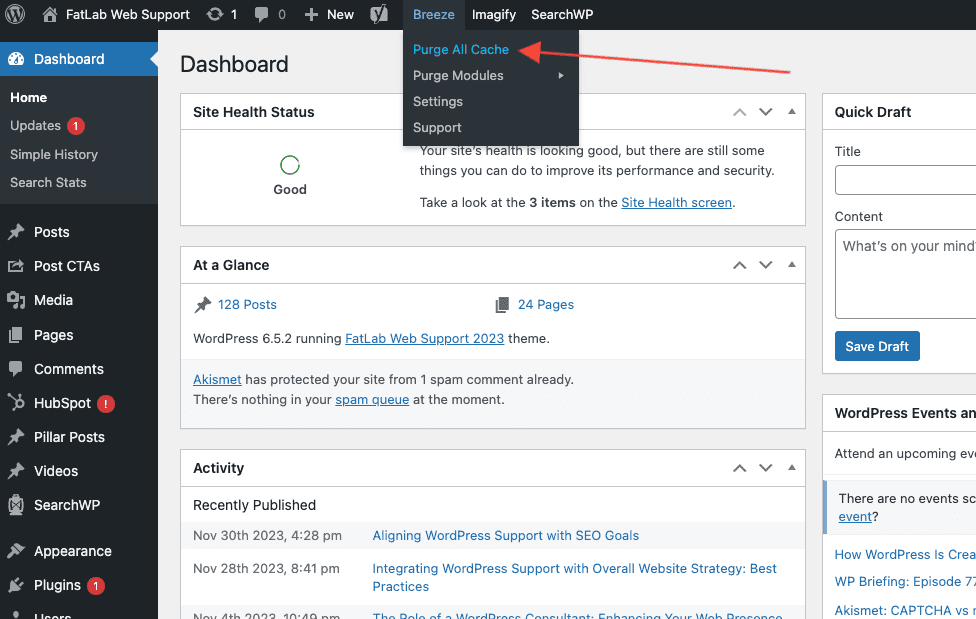
To enhance your website's performance, we implement advanced caching technologies. Our smart caching system is designed to immediately reflect updates on your website by selectively clearing cached pages as they are modified.
However, if you find that changes are not appearing, you may need to clear the cache manually. To do this, navigate to the WordPress dashboard, click on the "Breeze" menu at the top, and choose "Clear all Cache" from the dropdown menu. This simple action ensures your updates are visible to all visitors.